How to remove a product from export safely
Safely remove a product from B2BLIX export by sending its stock as zero before removing it from your imported product data. This guide explains why a product should normally remain in the import with zero stock until the update has been exported and applied by the marketplace.
When this guide is relevant
Use this workflow when you no longer want B2BLIX to include a product in exports to Pigu.lt, 220.lv, Kaup24.ee, or HobbyHall.fi.
This may be necessary when a product has been discontinued, is no longer available from your supplier, or should no longer be offered on a marketplace.
Short answer
Do not immediately remove an active product from your import. First, keep the product in the import with stock set to 0.
Allow B2BLIX to import and export the zero-stock value. Verify that the update was processed and that the marketplace offer is no longer available. After that, remove the product from the import.
Warning: Removing a product from the import only stops it from appearing in future B2BLIX exports. It does not, by itself, send a zero-stock update to the marketplace. The previously published offer may remain active until its stock is changed through an accepted marketplace update.
Why stock should be set to zero first
B2BLIX prepares its export from the products available in your connected import source. If a product is removed from that source, B2BLIX no longer has a product row to include in the export.
There is an important difference between these two situations:
- The product is present with stock 0: B2BLIX can include an explicit zero-stock value in the output.
- The product is completely absent: The product is omitted from the output, but no new stock value is sent for it.
For this reason, sending stock as zero before removing the product is the safer workflow.
A value shown in a B2BLIX export is not necessarily live on the marketplace immediately. The update must still be accepted and applied by the marketplace.
How to remove the product safely
-
Identify the correct product.
Check its EAN, SKU, and marketplace. Use the same product identifiers that were previously used in your import.
-
Change the imported stock to 0.
Keep the product row in your XML, CSV, Google Sheet, or other connected source. Change only the availability value needed to show that the product is out of stock.
-
Check that synchronization and export are configured.
When you are logged in, open Synchronization Settings. To understand the import and output controls, read Sync settings: configure product import and price export.
Verify that B2BLIX is using the expected product source and that the configured output method can send or provide the stock update. A monitoring-only or review-only workflow will not automatically publish the change.
-
Allow the next synchronization to process the product.
Do not remove the product while B2BLIX is still working with an older imported stock value.
-
Review the synchronization result.
Open Synchronization Reports. For help reading the results, see Synchronization reports: review import, BuyBox calculation, and export results.
Check that the relevant synchronization completed successfully and that the product was not skipped because of an import or export problem.
-
Check the individual product.
Open Product Checker and search for the product by EAN. To understand the information shown there, read Product Checker: review product data, price calculations, and exports.
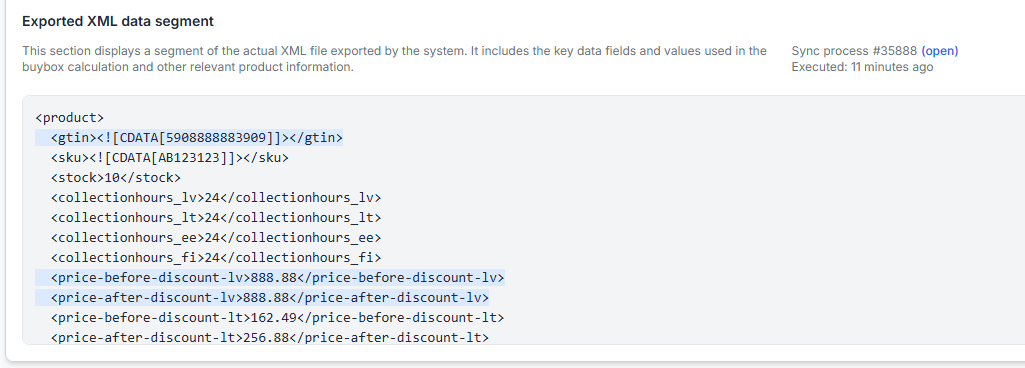
Review the latest known imported data and export information for every relevant marketplace.
-
Confirm the marketplace result.
Check that the product is no longer available for purchase from your shop on the intended marketplace. Marketplace processing may not be immediate, so do not rely only on the time when B2BLIX generated the output.
-
Remove the product from the import.
After the zero-stock update has been processed and verified, you can remove the product row from your source. It will then stop appearing in future B2BLIX exports.
Common reasons a product remains active
- The product was removed too early. It disappeared from the import before a zero-stock value could be exported.
- The source still contains positive stock. Check the actual file or integration used by the configured synchronization.
- The synchronization has not run yet. B2BLIX may still be using data from the previous import.
- The synchronization or export failed. Review the relevant synchronization report before removing the product.
- The output is not being published automatically. A preview, XML, or review-only setup may require an additional marketplace-side process.
- The wrong product was updated. Confirm the EAN, SKU, and marketplace before changing or deleting the row.
- The marketplace has not applied the update yet. A generated or exported value is not confirmed as live until the marketplace accepts and applies it.
Example
A product currently has stock 8 in your import, but you no longer want to sell it.
- Change its stock from 8 to 0.
- Keep the product in the import with the same EAN and SKU.
- Allow synchronization and export to process the new value.
- Check the synchronization report and Product Checker.
- Confirm that your marketplace offer is unavailable.
- Remove the product from the import.
If the zero-stock export is missing or the synchronization failed, leave the product in the import with stock zero until the problem has been resolved and the update can be verified.
What to do if the product was already removed
If the marketplace offer is still active, add the product back to the connected import source using its previous identifiers and set its stock to 0.
Allow the product to be imported and exported again. Review the synchronization result, check the product-level export information, and confirm the marketplace status before removing it for a second time.
What to do next
Before deleting any product from an import, verify the product identifiers, the current stock value, the configured output method, and the latest synchronization result.
The safest order is always: set stock to zero, synchronize, verify the marketplace result, and only then remove the product from the import.