How discount mode and campaign price export work
Learn how B2BLIX exports normal and discounted prices to Pigu, when discount mode should be enabled, and why a discount may not appear on the marketplace.
When this guide is relevant
This guide is useful when you want a calculated B2BLIX price to appear as a discounted or campaign price on 220.lv, Pigu.lt, Kaup24.ee, or HobbyHall.fi.
It also explains what to check when:
- The calculated price appears as a normal price instead of a discount.
- The old and new prices are identical in the exported data.
- The XML contains prices, but Pigu does not display the expected discount.
- A product does not receive the expected calculated or exported price.
Short answer
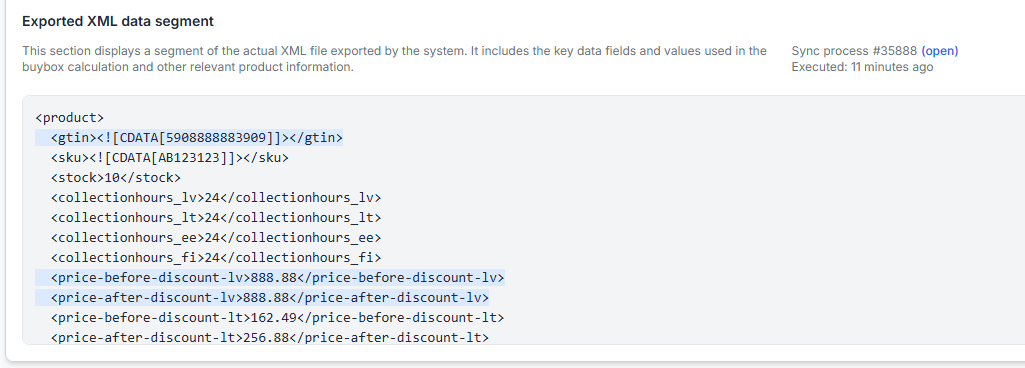
Enable Discount Mode when you want B2BLIX to send your original price as the price before discount and the calculated result as the price after discount.
When discount mode is disabled, B2BLIX sends the calculated result in both price fields. Because the values match, Pigu normally treats the result as a standard price rather than a discount.
To configure this, open Synchronization Settings when you are logged in. To understand the fields on that page, read Sync settings: configure product import and price export.
Warning: Changing discount mode affects how prices are prepared during future synchronizations and exports. Check your imported base prices, minimum and maximum limits, and at least one sample product before applying the setting to a larger catalog. A calculated or exported price is not necessarily live until Pigu has imported and applied it.
How discount mode changes exported prices
Pigu can receive two separate price values:
- Price before discount — the original or crossed-out price.
- Price after discount — the current price that the customer pays.
The way B2BLIX fills these fields depends on the discount mode setting.
| Situation | Price before discount | Price after discount | Expected presentation |
|---|---|---|---|
| Discount mode disabled | Calculated result price | Calculated result price | A standard price because both values match |
| Discount mode enabled | Original imported price | Calculated result price | A discount can be displayed when the result is lower than the original price |
| Calculated result is not lower than the original price | Equalized price | Equalized price | A standard price without a discount presentation |
If the calculated price after discount would be higher than the price before discount, B2BLIX does not export it as a higher “discounted” price. The values are made equal instead.
How to enable discount-style pricing
- Open Synchronization Settings.
- Review your current import source, export method, and synchronization configuration.
- Find Discount mode.
- Enable the setting.
- Select Update settings to save the change.
- Review the next synchronization result before relying on the new prices across your full catalog.
The same before-discount and after-discount logic is used when B2BLIX prepares the selected output. The exact delivery method depends on whether your account is configured to use XML or another supported synchronization method.
What B2BLIX controls and what Pigu controls
B2BLIX controls the price values placed in the supported before-discount and after-discount fields.
Pigu controls how imported values are accepted and displayed on the marketplace. B2BLIX cannot control the final color, campaign label, visual presentation, or other marketplace-side behavior beyond providing the relevant price values.
For an XML product source, Pigu must be configured to import and map both fields correctly. If the XML values are correct but the discount is not visible, review the XML source configuration in Pigu and reconnect or remap the relevant price fields when necessary.
What to check if the discount price does not appear
1. Confirm that discount mode is enabled
Open Synchronization Settings and confirm that discount mode is enabled and that the updated settings were saved.
If the mode is disabled, both exported fields contain the calculated result. Matching values are normally presented as a standard price.
2. Compare the original and calculated prices
A visible discount requires the price after discount to be lower than the price before discount.
No discount presentation is expected when:
- The calculated price is the same as the original price.
- The selected strategy keeps the current price.
- A minimum or maximum limit prevents a lower result.
- The calculation would otherwise produce a price after discount that is higher than the original price.
3. Check the product calculation and exported values
Open Product Checker and search for the product by EAN. For an explanation of the available product information, read Product checker: review product data, price calculations, and exports.
Check whether the product has:
- A valid imported original price.
- A completed BuyBox calculation.
- The expected calculated result.
- Valid minimum and maximum price limits.
- Exported before-discount and after-discount values.
4. Confirm that the product and its category are monitored
If the product has not been discovered or its category is not configured for monitoring, B2BLIX may not have sufficiently recent marketplace information for the expected calculation.
Check the category in Category management. For details about category monitoring settings, read Category management: monitoring frequencies and price coefficients.
Verify that the relevant marketplace category has an appropriate monitoring configuration. New products and categories may require time to be discovered before regular monitoring and calculation can begin.
5. Review the synchronization report
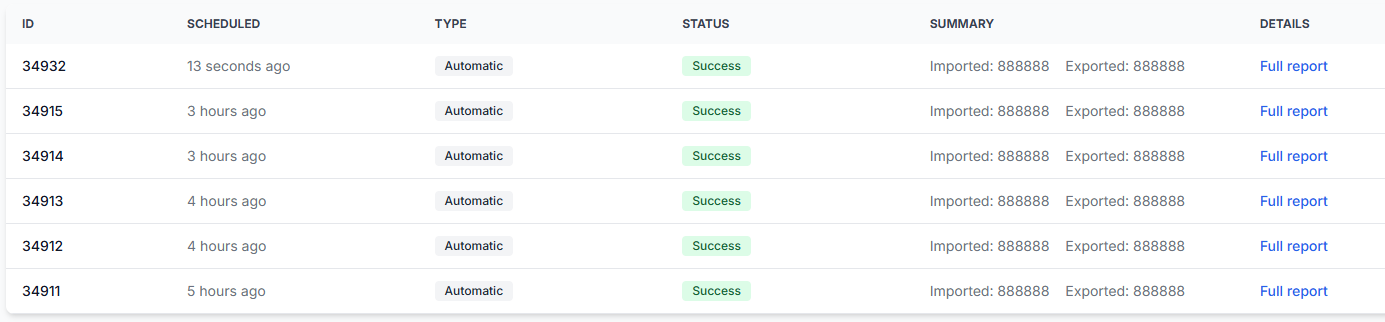
Open Synchronization reports and review the latest completed run. To understand the processing details, read Synchronization reports: review import, buybox calculation, and export results.
Look for signs that the product was received, matched, calculated, and included in the selected output. A correct account setting will not affect a product that was excluded, missing from the import, or not processed during the synchronization.
6. Check the XML mapping in Pigu
If B2BLIX exports the expected values but Pigu still displays only one standard price, check how the XML source is connected in Pigu.
Make sure that:
- The price-before-discount field is mapped to the corresponding Pigu field.
- The price-after-discount field is mapped to the corresponding Pigu field.
- Pigu is importing the current B2BLIX XML URL rather than an older source.
- The latest file has been imported and processed by Pigu.
B2BLIX can verify and prepare the exported values, but it cannot guarantee when Pigu will import them or how Pigu will present a campaign after import.
Common scenarios
Both XML price fields contain the same value
This is expected when discount mode is disabled. It can also happen when the calculated result is equal to the original price or when a valid discount cannot be produced.
The result price is lower, but Pigu shows a normal price
First confirm that discount mode was enabled before the relevant synchronization. Then check the exported values in Product Checker or the synchronization results. If the values are different and correctly ordered, review the field mapping and import status in Pigu.
Some products show discounts and others do not
This can be normal. Different products can receive different calculation results. A product will not have a discount presentation when its calculated price is not lower than its original price.
Also check whether the affected products have different price limits, strategies, monitoring status, exclusions, or source data.
The price changes in B2BLIX but not on the marketplace
A calculation, export, and marketplace update are separate steps. Confirm that the product was included in a successful synchronization and then verify that Pigu accepted and applied the latest source data.
Example
A seller imports a product with an original price of €100.00. B2BLIX calculates a competitive result of €99.00.
- With discount mode disabled, B2BLIX exports €99.00 as both the price before discount and the price after discount. Pigu normally displays €99.00 as a standard price.
- With discount mode enabled, B2BLIX exports €100.00 as the price before discount and €99.00 as the price after discount. When Pigu imports and maps both values correctly, it can display €100.00 as the previous price and €99.00 as the discounted price.
What to do next
- Verify the original price and price limits for a sample product.
- Enable discount mode in synchronization settings.
- Save the settings and run or wait for the next configured synchronization.
- Review the calculated and exported values in Product Checker.
- Check the synchronization report for processing or export issues.
- If the exported values are correct, verify the XML field mapping and import status in Pigu.
- Expand the setting to more products only after confirming the expected result on a limited test group.