How to exclude products from repricing calculations
Use BuyBox exclusion rules when you want selected products to remain outside automatic repricing calculations. This is different from disabling marketplace monitoring to reduce data-collection costs.
When this guide is relevant
This guide answers two similar but different questions:
- How can I stop B2BLIX from calculating a new price for a selected product?
- How can I stop marketplace data collection for products that I do not want to monitor?
The correct setting depends on your goal. Excluding a product from repricing and disabling monitoring are separate actions.
Short answer
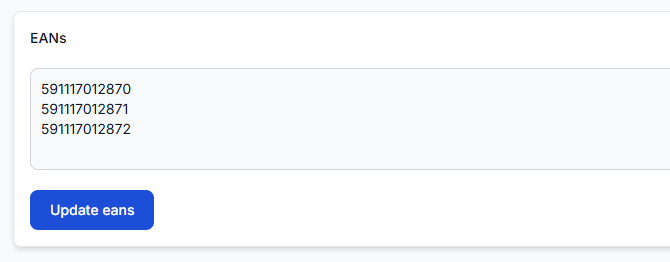
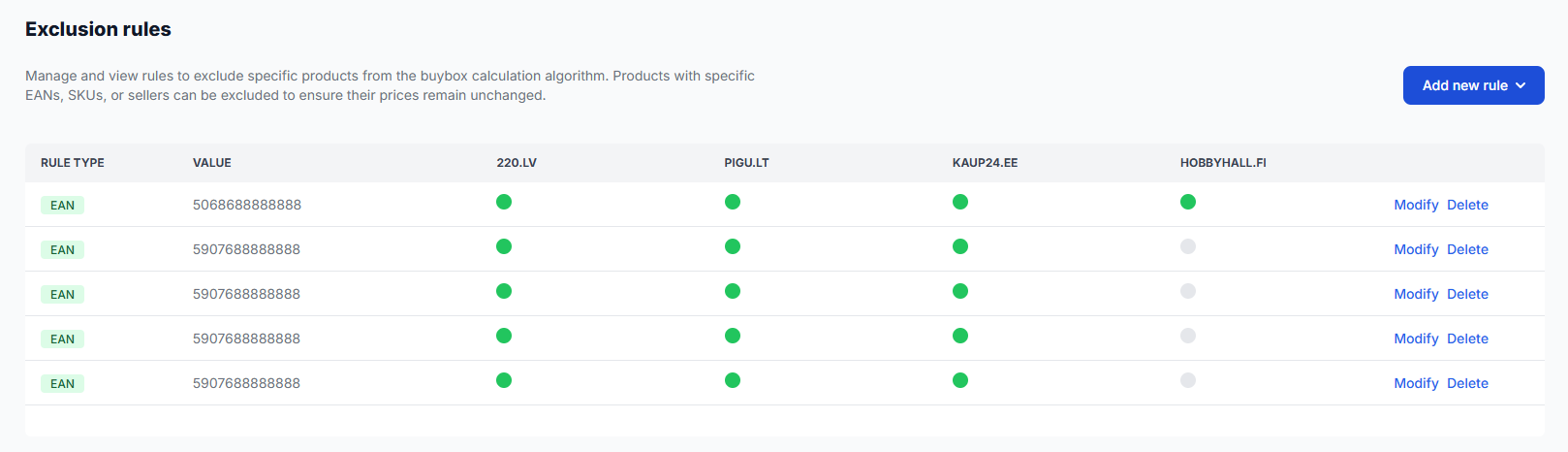
To exclude a selected product from automatic pricing calculations, create an exclusion rule for its EAN in the Exclusion rules section.
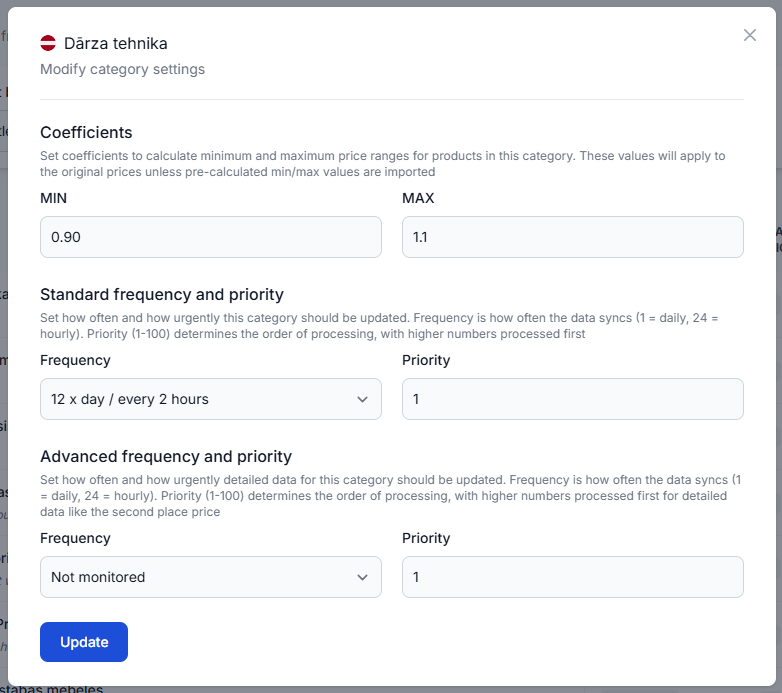
To stop paid marketplace monitoring for a category, open Category management and set that category’s monitoring frequency to 0.
Important: Do not disable monitoring when your only goal is to stop automatic repricing. Monitoring controls marketplace data collection, while exclusion rules control whether the repricing algorithm processes a product.
How the two options work
| What you want to do | Setting to use | What it changes |
|---|---|---|
| Prevent a selected product from receiving a calculated BuyBox price | Exclusion rule | Prevents the selected EAN from being processed by the automatic repricing algorithm. |
| Stop marketplace data collection for a category | Monitoring frequency set to 0 | Disables the category’s scheduled marketplace monitoring and helps control monitoring costs. |
A product may therefore remain monitored while being excluded from repricing. This can be useful when you still want to review its marketplace position but do not want B2BLIX to calculate an automatic price for it.
Exclude a product from repricing calculations
- Identify the product’s correct EAN.
- When you are logged in, open the Exclusion rules section in your account.
- Add an exclusion rule for the EAN that should not be processed by automatic repricing.
- Check the marketplace status of the rule and save the change.
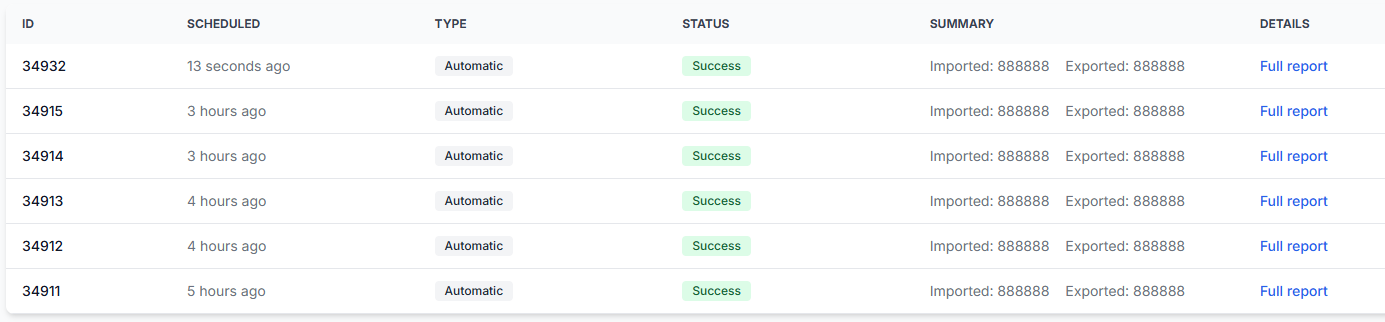
- Review a later synchronization report to confirm how the product was processed.
To understand the available fields and rule controls, read BuyBox exclusion rules.
Stop monitoring to control data-collection costs
If your goal is to stop collecting marketplace information for a complete category, change its monitoring configuration instead of creating a repricing exclusion.
- When you are logged in, open Category management in your account.
- Select the correct marketplace and category.
- Set the relevant monitoring frequency to 0.
- Check whether any products from that category have separate monitoring schedules in Individual products.
An individual product schedule can override its broader category schedule. To understand these settings, read Category management: monitoring frequencies and price coefficients and Individual products: set product-specific monitoring frequencies.
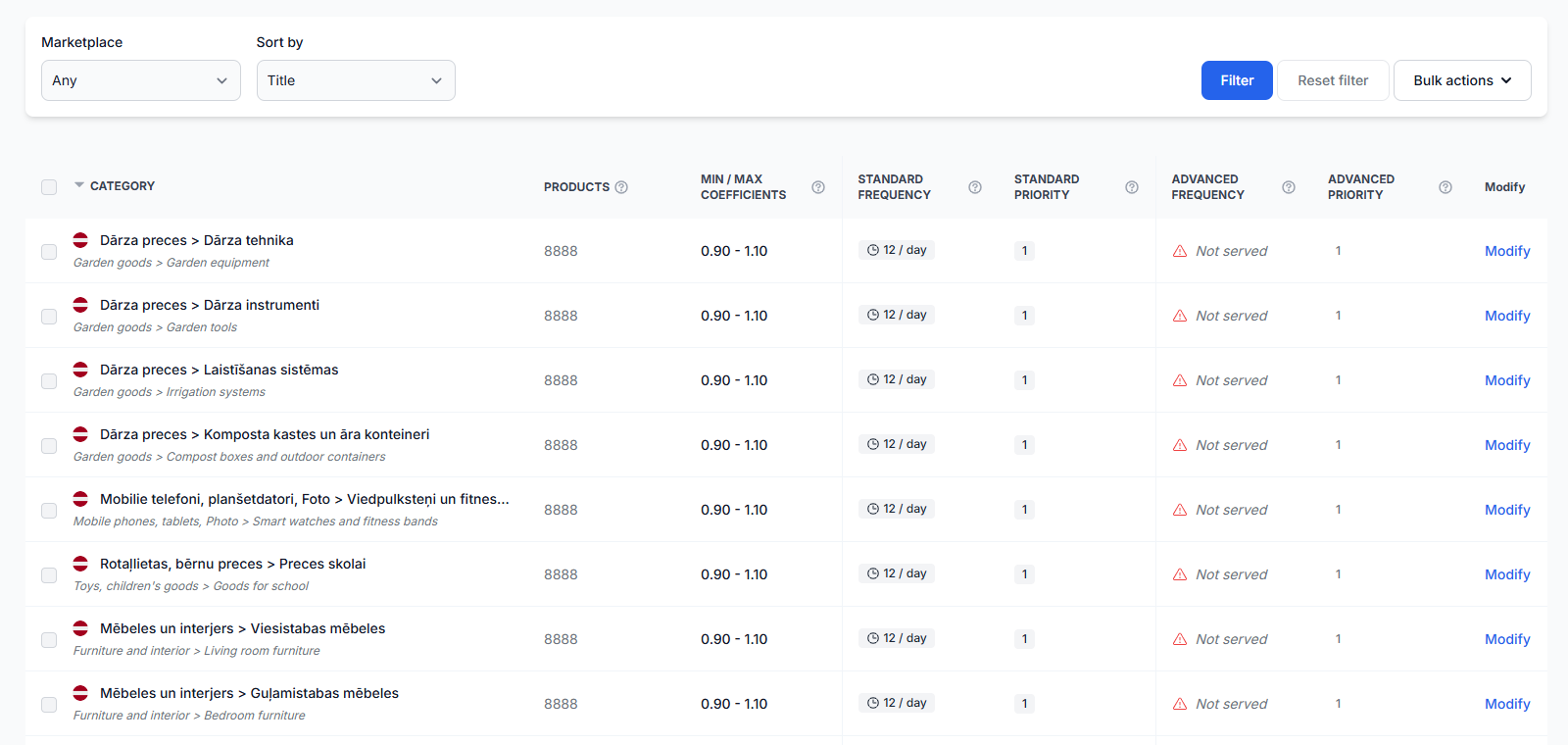
Warning: Disabling monitoring stops new scheduled marketplace observations for the affected category, except where a product-specific schedule overrides the category setting. The information available for later calculations may therefore become outdated. Verify your monitoring configuration before changing live pricing or synchronization workflows.
What to check before changing anything
- Your goal: Decide whether you want to stop repricing, stop monitoring, or both.
- EAN: Confirm that the exclusion rule uses the EAN of the intended product.
- Marketplace: Check that the rule or monitoring change applies to the correct Pigu Group marketplace.
- Individual monitoring: Verify that the product does not have a separate monitoring schedule that overrides its category.
- Synchronization results: Review processing results after the change instead of assuming that it was applied immediately.
To review processing results, open Synchronization reports in your account. For an explanation of the report details, read Synchronization reports: review import, BuyBox calculation, and export results.
Common scenarios
You want to manage one product’s price manually
Add an EAN-based exclusion rule. You can keep marketplace monitoring active if you still want to review the product’s competitive position.
You do not want to monitor an entire category
Set the category’s monitoring frequency to 0. Also check for individual product schedules that may continue monitoring selected EANs.
You want to reduce monitoring costs but continue repricing other products
Adjust monitoring only for the categories or individual products that you no longer need to track. Do not create repricing exclusions for unrelated products.
The product still appears in your catalog
An exclusion rule does not necessarily remove the product from product lists. Its purpose is to prevent the automatic repricing algorithm from processing the selected EAN.
Example
A seller wants to keep the price of EAN 4750000000001 under manual control but still wants to see its marketplace information. The seller adds an exclusion rule for that EAN and leaves its category monitoring active.
For a different low-priority category, the seller no longer wants marketplace data to be collected. The seller sets that category’s monitoring frequency to 0 and checks that no individual product schedules override the category setting.
What to do next
- Choose whether you need a repricing exclusion or a monitoring change.
- Apply the change in the appropriate account section.
- Check any marketplace-specific status and product-level monitoring overrides.
- Review the next relevant synchronization report before making further changes to live price publication.