How to provide and validate min/max price limits
This guide explains the two ways to configure MIN/MAX limits in B2BLIX, the validation rules that apply, and the checks sellers should complete before exporting calculated prices.
Why min and max prices are required
Every product processed by the BuyBox algorithm needs an allowed pricing range. This range is defined by a minimum price (MIN) and a maximum price (MAX).
The minimum price protects the seller from reducing a product below an acceptable margin. The maximum price prevents the algorithm from increasing the price beyond the seller’s permitted level and can help avoid prices that may be rejected or restricted by the marketplace.
B2BLIX uses this range when calculating a possible new price. Depending on the marketplace situation and your selected strategy, the calculated price may be reduced, maintained, matched to another offer, or increased. However, it must remain within the available MIN/MAX range.
Important: MIN/MAX settings can affect calculated prices, exports, API updates, and live marketplace offers. Verify your price limits with a small product group before enabling automatic price publication for your full catalogue.
Short answer
You can provide MIN/MAX prices in two ways:
- Provide calculated MIN and MAX values in your product import. You calculate the limits in your own system, spreadsheet, XML, or CSV file and send the finished values to B2BLIX.
- Configure category-level coefficients in B2BLIX. You provide a standard product price, and B2BLIX calculates the limits by multiplying that price by the coefficients configured for the product’s category.
Explicit product-level limits are the better option when products require individual margins or different pricing rules. Category coefficients are useful when many products in the same category can follow a common percentage range.
When explicit product-level MIN/MAX values are available, they take precedence over limits calculated from category coefficients.
Option 1: Provide min/max values in your product data
Use this option when you already calculate acceptable price limits in your accounting system, product management system, spreadsheet, or another internal source.
Your XML, CSV, or Google Sheets source can include the product’s standard price together with its MIN and MAX values. Your own formulas may use product cost, required margin, delivery costs, category, supplier, or other business rules.
A simplified product row could contain:
| Product | Standard price | MIN | MAX |
|---|---|---|---|
| Example product | €100.00 | €90.00 | €110.00 |
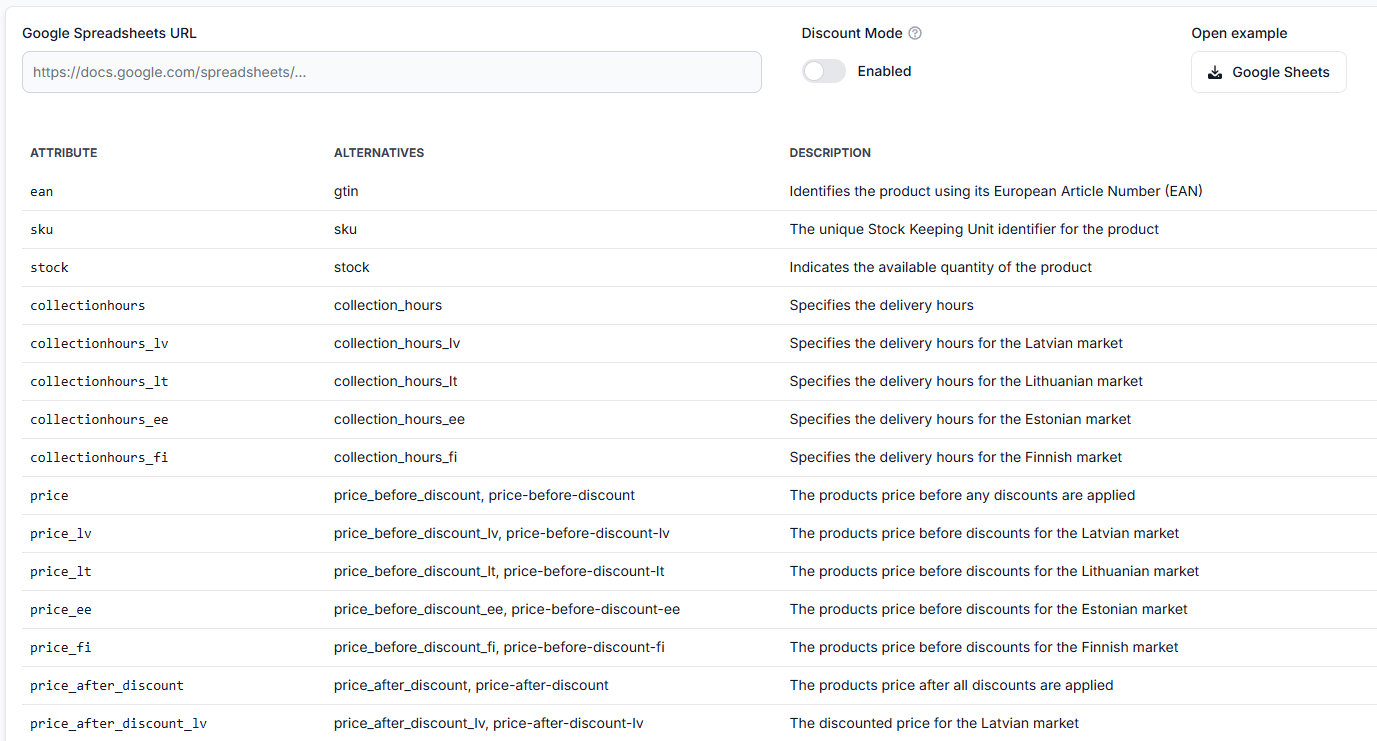
Where supported by your import structure, you may also provide separate limits for individual marketplaces. For example, a source may contain general min and max values together with marketplace-specific fields such as min_LV and max_LV.
Use marketplace-specific limits when the acceptable range differs because of local pricing, delivery costs, taxes, or another market-specific business rule. Check the supported attribute names before preparing the final source.
To test your file structure, open Sync Tester in your account. To review the supported structure and testing process, read Sync Tester and Google Sheets file structure.
Option 2: Calculate min/max from category coefficients
Use category coefficients when you provide a standard price but do not want to calculate a separate MIN and MAX value for every product.
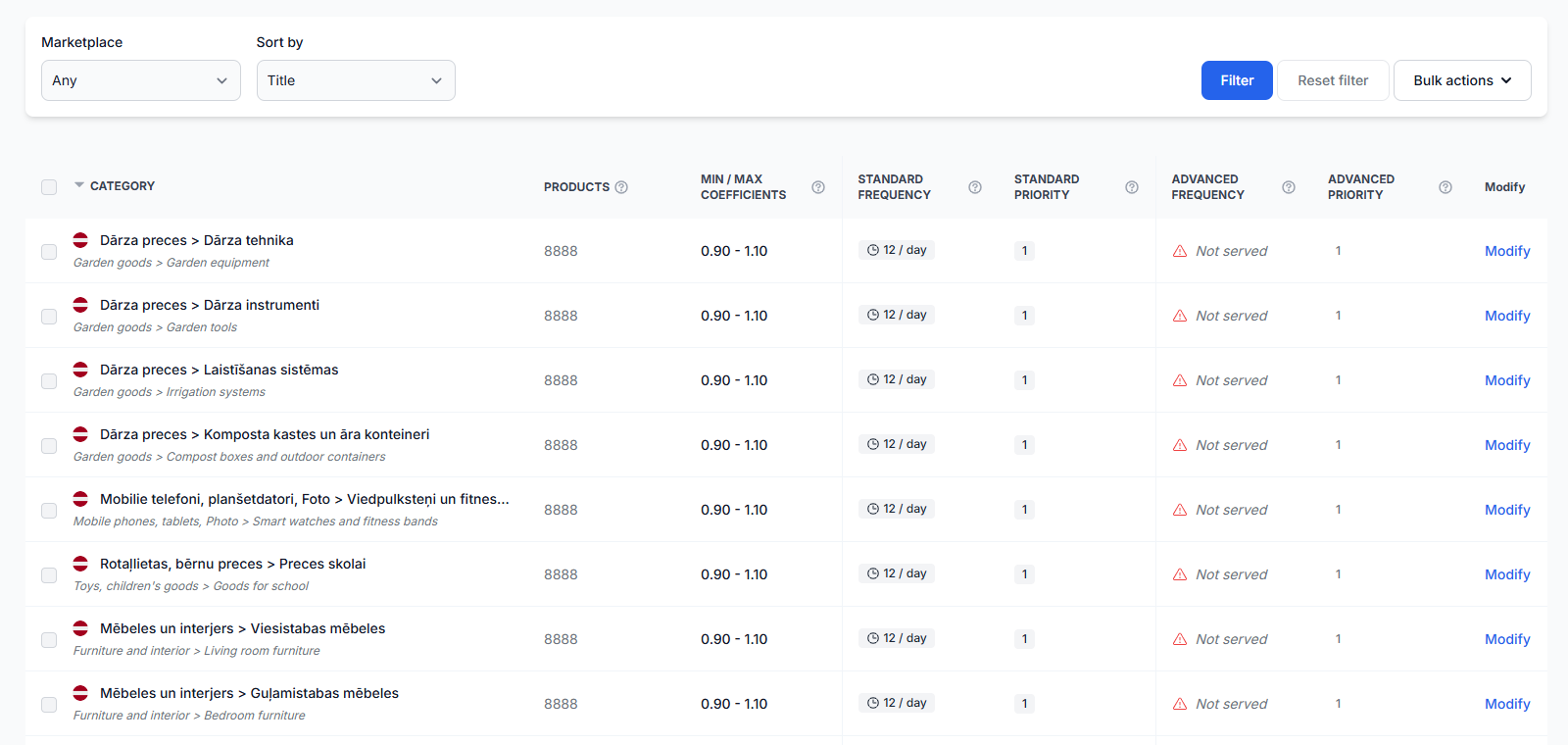
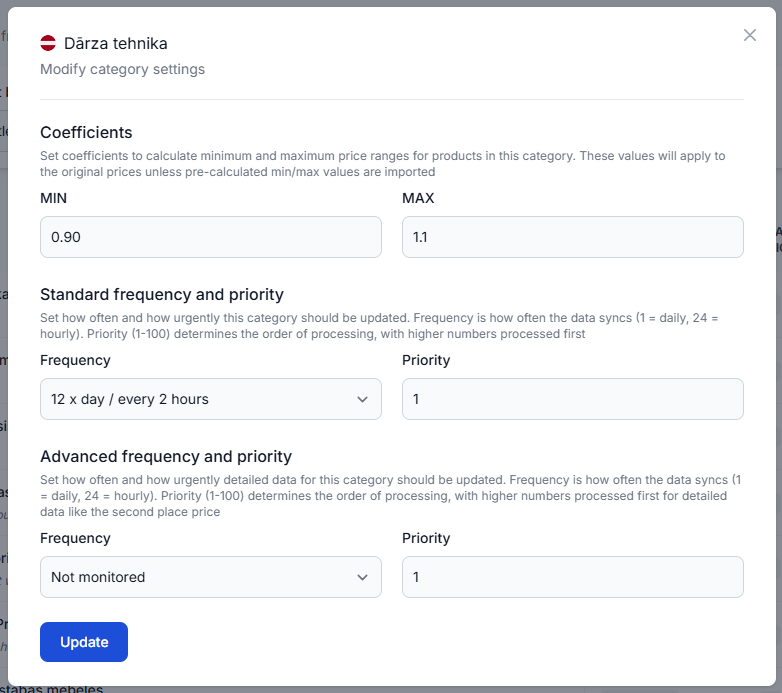
In Category Management, categories are listed separately for each supported marketplace. You can assign a minimum coefficient and a maximum coefficient to a category.
During synchronization, B2BLIX uses the product’s standard imported price and applies the coefficients configured for its category:
- MIN = standard price × minimum coefficient
- MAX = standard price × maximum coefficient
For example:
- Standard product price: €100.00
- Minimum coefficient: 0.90
- Maximum coefficient: 1.10
- Calculated MIN: €90.00
- Calculated MAX: €110.00
The BuyBox algorithm can then calculate a price between €90.00 and €110.00. It must not reduce the product below €90.00 or increase it above €110.00.
To configure coefficients, open Category Management in your account. For an explanation of the available category fields and bulk actions, read Category Management: monitoring frequencies and price coefficients.
Which method should you use?
| Situation | Recommended method |
|---|---|
| Every product has its own cost or margin requirement | Provide product-level MIN/MAX values |
| You already calculate limits in your own system | Provide product-level MIN/MAX values |
| Different marketplaces need different limits | Provide marketplace-specific product limits where supported |
| Products in a category can use the same percentage range | Use category coefficients |
| You want limits to change automatically when the standard price changes | Use category coefficients |
| Most products follow a category rule, but some need special limits | Use category coefficients and provide explicit limits for the exceptions |
How min/max validation works
Product rows are validated before they can be used for BuyBox calculations. At minimum, the following price-range rules must be satisfied:
- MIN must be defined.
- MIN must be greater than 0.
- MAX must be defined or successfully calculated.
- MAX must be greater than or equal to MIN.
For a consistent pricing setup, the standard or current price should normally also be inside the configured range:
MIN ≤ standard price ≤ MAX
If the price order is incorrect, review the imported values and any category coefficients before processing the product again.
Valid examples include:
- MIN €80.00, standard price €90.00, MAX €100.00
- MIN €90.00, standard price €90.00, MAX €90.00
Invalid or problematic examples include:
- MIN €0.00 because the minimum must be greater than zero
- MIN €100.00 and MAX €90.00 because MAX is lower than MIN
- MIN €110.00, standard price €100.00, and MAX €120.00 because the standard price is below the intended range
- MIN €80.00, standard price €100.00, and MAX €90.00 because the standard price is above the intended range
If the required rule is not met, the product may fail validation with a price-range error and may not proceed to normal BuyBox calculation or export.
What to check in your account
1. Confirm where the limits should come from
First determine whether the product should use:
- explicit MIN/MAX values from the imported product data;
- marketplace-specific limits from the imported data; or
- limits calculated from category coefficients.
Do not change category coefficients until you have checked whether the product already contains explicit limits. Product-level values may override the category calculation.
2. Validate the imported source
Check that the source is accessible and that the standard price, MIN, and MAX fields contain numeric values. Look for empty cells, text instead of numbers, incorrect decimal separators, or formulas returning errors.
To validate your source, open Sync Tester in your account.
3. Check the product’s category coefficients
If limits are calculated dynamically, confirm that the product is assigned to the expected marketplace category and that both coefficients are suitable.
Check that:
- the minimum coefficient is greater than zero;
- the maximum coefficient is not lower than the minimum coefficient;
- the resulting prices match your margin and marketplace requirements;
- the coefficients were configured for the correct marketplace category.
Open Category Management in your account to review these values.
4. Review the final values for one product
Use Product Checker to inspect a specific EAN. This is the main page for understanding which product data, price limits, observations, and calculation results are available for that product.
Open Product Checker in your account. For details about its sections, read Product Checker: review product data, price calculations, and exports.
5. Review synchronization errors
If multiple products fail or do not appear in the expected output, check the most recent synchronization report. It can help you distinguish between import, validation, calculation, and export problems.
Open Synchronization Reports in your account. For help reading the results, see Synchronization Reports: review import, BuyBox calculation, and export results.
Common causes of incorrect or missing price limits
Min or max is empty
The import source does not contain a usable product-level value, and no valid category coefficient is available to calculate it.
Min is zero or negative
A minimum price of zero or below cannot provide a safe lower boundary and fails the required validation rule.
Max is lower than min
The allowed range is mathematically invalid. Correct the source values or the category coefficients so MAX is equal to or greater than MIN.
The wrong category is used
When category coefficients are used, a product assigned to an unexpected category may receive a different price range than intended. Categories are managed separately for each marketplace.
A product-level value overrides the category value
You may change a category coefficient but see no change for a particular product because that product already has explicit MIN/MAX values in the imported data.
Marketplace-specific values are incomplete
One marketplace may receive a specific MIN or MAX while another marketplace uses general values or has no usable range. Review all relevant marketplace fields together.
The imported standard price changed
With category coefficients, MIN and MAX are recalculated from the imported standard price. A changed standard price therefore changes the absolute limits even when the coefficients remain the same.
Min is too high for the current competition
The configuration may be valid, but the algorithm cannot calculate a competitive price below MIN. If competing offers or the current BuyBox price are lower, the product may remain outside a winning position.
This does not mean that the minimum should automatically be reduced. Review your cost and margin requirements before changing it. In some cases, accepting that a lower-priced competitor wins is safer than selling below your acceptable margin.
Max is not suitable for marketplace restrictions
MAX should represent the highest price you are prepared to publish. It should also take current marketplace price restrictions into account. An excessively high offer may be rejected, restricted, or deactivated by the marketplace.
B2BLIX does not control marketplace acceptance rules. A price calculated or exported by B2BLIX is not necessarily live until it has been accepted and applied by the marketplace.
Example: how the range protects a product
Assume the following configuration:
- Standard price: €100.00
- MIN: €90.00
- MAX: €110.00
- Observed competing price: €88.00
Even if the selected strategy would normally move below the competing price, the algorithm must not calculate a price below €90.00. The seller may therefore lose the BuyBox, but the configured minimum margin is protected.
If the seller is already winning at €100.00 and the selected strategy permits a price increase, the algorithm may calculate a higher price, but it must not exceed €110.00.
The marketplace still decides which seller receives the BuyBox. A valid MIN/MAX range controls the prices B2BLIX is permitted to calculate, but it does not guarantee a winning position.
What to do next
- Choose whether your limits will come from product data, category coefficients, or a combination of both.
- Confirm that every processed product can receive a MIN greater than zero and a MAX equal to or greater than MIN.
- Keep the standard price within the intended MIN/MAX range.
- Test the import source before enabling regular synchronization.
- Review several representative products in Product Checker.
- Run calculations without automatic publication and inspect the resulting prices.
- Enable wider exports or API updates only after confirming that the ranges protect both margins and upper-price requirements.