How to configure and choose the buybox price step
Learn where to configure the BuyBox price step, how its marketplace-level scope works, and how to choose a value that balances competitiveness with margin protection.
This guide explains how the BuyBox price step affects price calculations, whether it can vary by product group, and what to check before using a smaller or larger value.
What does the buybox price step control?
The step is a BuyBox setting used by pricing strategies that adjust a calculated price by a specific amount. It helps determine how far the calculated price may move when B2BLIX reacts to the latest known marketplace situation.
This article is relevant when you need to:
- find where the price step is configured;
- choose between values such as 0.01 and 0.20;
- use different steps for different marketplaces;
- understand whether the step can be limited to selected brands or categories.
Short answer
Configure the price step in BuyBox Settings under the parameter called step. The value must be greater than zero. For example, 0.20 is an accepted value.
The step can be configured separately for each marketplace. However, it cannot be configured separately for individual brands or categories. A step set for one marketplace applies to all products processed with that marketplace’s settings.
There is no single step value that is best for every seller. A smaller step usually makes more cautious price changes, while a larger step can create a stronger price difference but may also move prices more aggressively.
Warning: Changing the step can affect calculated prices for all applicable products in that marketplace. These prices may later be included in an export or marketplace update, depending on your synchronization settings. Verify your strategies and minimum and maximum price limits before changing the value.
Where to configure the step
When you are logged in, open BuyBox Settings. To understand the settings table and its fields, read the BuyBox Settings page guide.
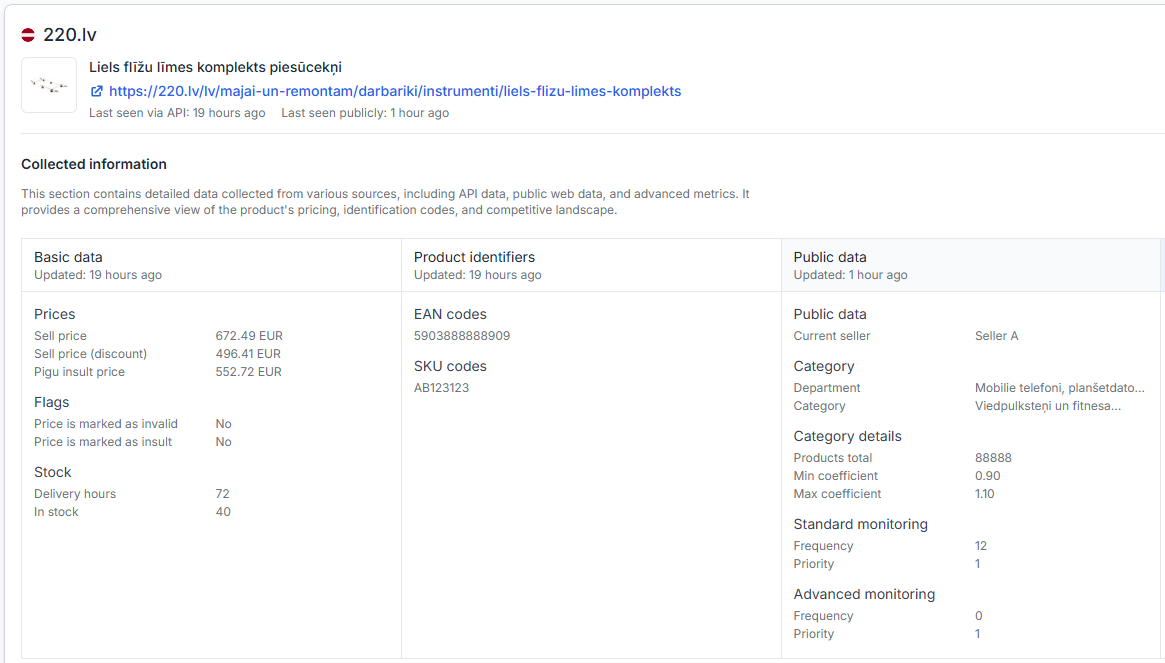
Find the row for the marketplace you want to configure and check the step value. Because marketplace settings are separate, you can use one step for 220.lv and another step for Pigu.lt, Kaup24.ee, or HobbyHall.fi.
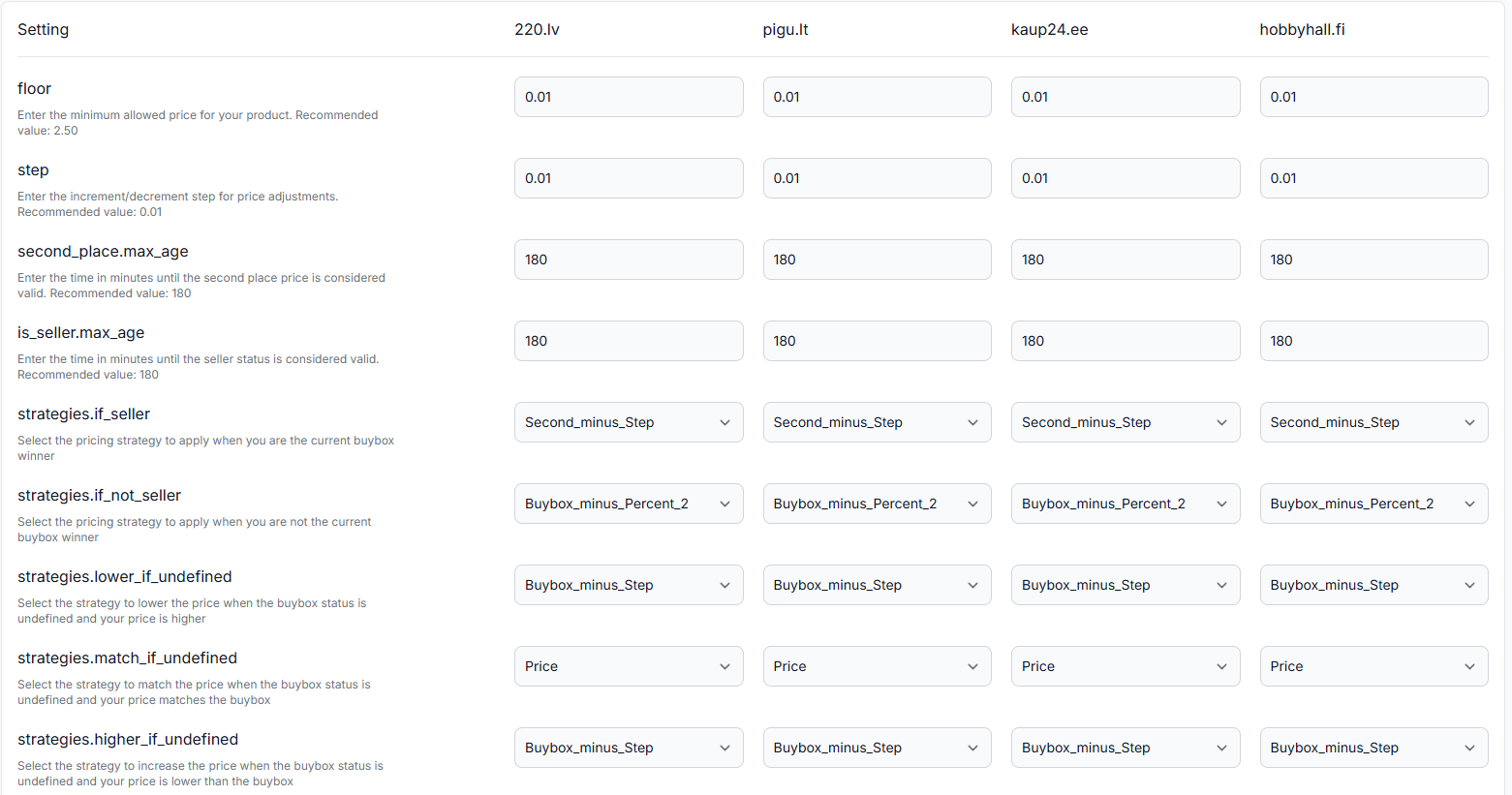
Can the step be different for selected brands or categories?
No. The price step is a marketplace-level setting, not a brand-level or category-level setting.
For example, when the step for 220.lv is set to 0.20, that value applies to all products using the 220.lv BuyBox settings. It does not apply only to one brand, category, supplier, or selected group of EAN codes.
You can still control product pricing through other available safeguards, including product-level or category-derived minimum and maximum price limits. These limits constrain the final calculated price even when a strategy uses the configured step.
Should you use 0.01 or 0.20?
Neither value is automatically better. The result depends on your pricing strategy, permitted price range, margins, and competitor behaviour.
A smaller step, such as 0.01
- Creates a smaller difference when the selected strategy applies the step.
- May help preserve more margin.
- May provide only a small competitive price difference.
A larger step, such as 0.20
- Creates a more noticeable price difference when the selected strategy applies the step.
- May theoretically provide a stronger competitive advantage.
- May reduce the price more aggressively and use more of the available margin.
A larger step does not guarantee that your offer will win the BuyBox. The marketplace determines the BuyBox winner, and price may not be the only factor considered.
What to check before changing the step
- Confirm the marketplace. Make sure you are editing the correct row for 220.lv, Pigu.lt, Kaup24.ee, or HobbyHall.fi.
- Review the selected strategies. The effect of the step depends on the pricing strategy used for the current product situation.
- Verify minimum and maximum prices. These limits protect the permitted pricing range. Check that they reflect your actual margin requirements.
- Consider the full catalog impact. The new value will apply across the marketplace, not only to the product or category you are currently reviewing.
- Test representative products. Review several realistic cases before enabling wider price publication.
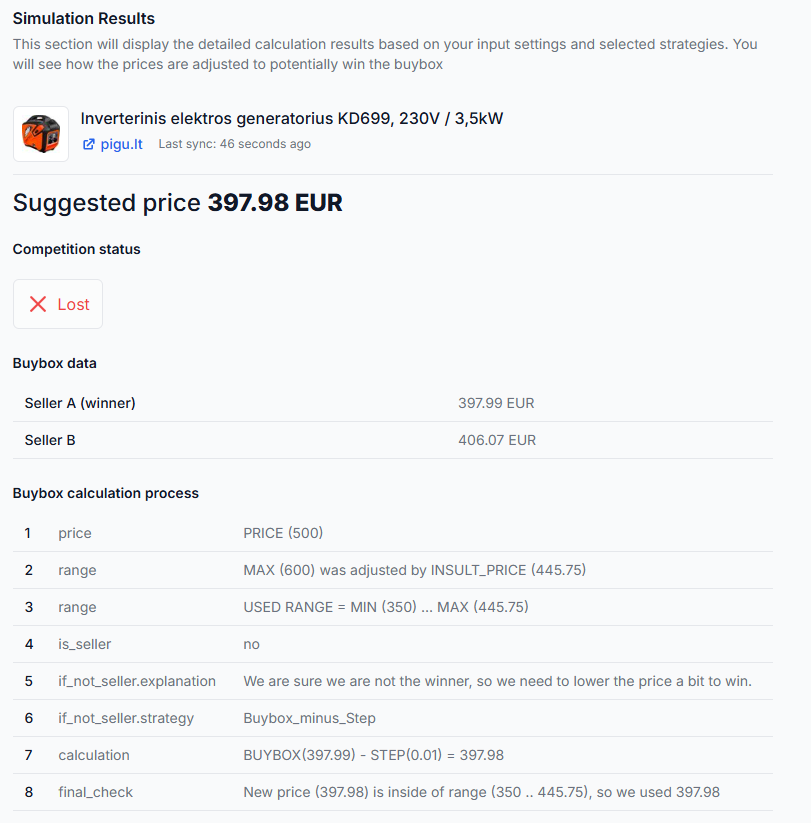
To test a representative situation without relying on a live publication workflow, open the BuyBox Simulator. For instructions, read Using the BuyBox Simulator.
Example
Suppose you configure a step of 0.20 for Pigu.lt. A pricing strategy that uses the step may produce a price difference of €0.20 when reacting to the observed competitive situation.
If the same marketplace were configured with a step of 0.01, the adjustment would be smaller. In both cases, the calculated result must remain within the available minimum and maximum price limits.
The step does not apply only to the product used in the example. It applies to all relevant products using the Pigu.lt marketplace settings.
What to do next
- Open BuyBox Settings and confirm the current step for each marketplace.
- Review the strategies that use the step and verify your price limits.
- Choose a positive value based on how cautiously or aggressively you want the strategy to react.
- Test several representative products in the BuyBox Simulator.
- Review the calculated results before allowing them to be exported or submitted to the marketplace.
A calculated or exported price is not necessarily live on the marketplace. It becomes live only after it has been submitted, accepted, and applied through the configured marketplace workflow.