How to find and review a monitored product by ean
Search for a known EAN in B2BLIX to locate a monitored product and review its imported data, collected market information, and calculated price recommendation.
When this guide is useful
This guide explains how to find and inspect a monitored product when you know its EAN. This can help when you need to confirm whether the product was imported, what market information was collected, or why B2BLIX calculated a particular price.
For example, you may want to check a product monitored on a price comparison platform such as Kaina24.lt after noticing that its recommendation is missing, outdated, or different from what you expected.
Short answer
Yes, a monitored product can be located using a known EAN when that EAN is included in the product data stored in B2BLIX.
The most direct method depends on how the product was imported:
- If the EAN was imported as the product's ID, enter it directly in Product Checker.
- If the EAN was used only as the product's search query, the Product Checker may still require the separate imported product ID. In that case, first locate the product in All products and then open its Product Checker report.
How product identification works
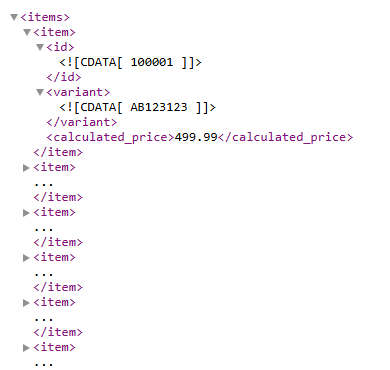
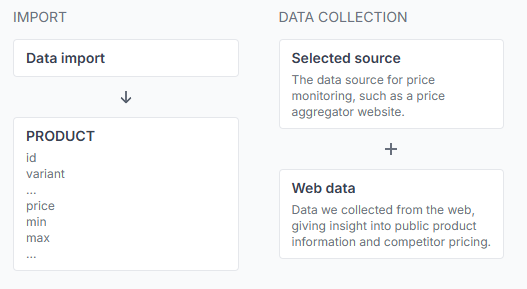
Each imported product is identified in B2BLIX by its required ID and, when used, an optional variant. The ID may be an EAN, a store product ID, or another stable identifier selected by the seller.
The product also has a query. This is the text B2BLIX submits to the selected price comparison source. The query may also be an EAN, but the query and the product ID are not necessarily the same value.
B2BLIX does not automatically convert an EAN into a different product ID or correct an unsuitable query. The Product Checker uses the imported product identity, while monitoring uses the product's configured query.
How to find the product
Option 1: Search directly in product checker
- Open Product Checker when you are logged in.
- Select the correct price synchronization.
- Enter the EAN in the Product ID field if the EAN was imported as the product ID.
- Enter the variant if the product was imported with one.
- Select Find to open the product report.
To understand the search fields and report sections, read Product Checker: review product data and price calculations.
Option 2: Find the product in all products
Use this method when the EAN was not imported as the product ID or when you are unsure which synchronization contains the product.
- Open All products when you are logged in.
- Select or filter by the relevant synchronization.
- Use the keyword filter to look for the known EAN or other identifying product information.
- Confirm the product's imported ID and optional variant.
- Use the product action to open its Product Checker report.
For details about the available product columns, filters, and actions, read the All products interface guide.
What to review in product checker
After finding the product, check the following areas before changing any settings.
1. Imported product data
- ID: Confirm that you opened the intended product.
- Variant: Check whether a size, colour, model, or other variation is used.
- Query: Confirm what B2BLIX submits to the selected comparison platform.
- Base price: Check the regular catalog price supplied by your source.
- Minimum and maximum prices: Confirm the permitted calculation range.
- Frequency: Check how often this product is scheduled for monitoring.
- Last import time: Confirm that the product data was imported recently.
2. Collected market information
Review the public result cards collected from the selected platform. Depending on the available data, the report may show the first and second results, including their titles, displayed prices, suppliers, images, and links.
Check that the returned cards represent the intended product, model, and variant. An EAN is usually a useful starting query, but a platform may return no results or may return cards that are not commercially comparable.
B2BLIX processes the public cards returned for your configured query. It does not independently confirm that every card is the exact same product, model, condition, or promotion.
3. Price calculation
The processing overview explains the main steps behind the recommendation. Review:
- The imported base price.
- The product's minimum and maximum limits.
- The detected seller state.
- The selected comparison target.
- The strategy applied to the current situation.
- The provisional calculation.
- The final minimum and maximum range check.
The calculated result may differ from the visible first result because the synchronization can use seller filters, skipped leading offers, a selected target position, and different pricing strategies.
Opening a product in all products or product checker does not change its live price. However, changes to synchronization settings, BuyBox strategies, product limits, or export settings can affect future calculated and exported prices. Verify the product, synchronization, and allowed price range before changing anything.
Why the ean or product may not be found
- The EAN is the query, not the product ID. Find the imported ID in all products and use that ID in product checker.
- The wrong synchronization is selected. Each price comparison source has its own independent synchronization and product list.
- A variant is required. Products with the same ID may be distinguished by an additional variant value.
- The product has not been imported. Check the latest import and synchronization report.
- The product is no longer present in the active import. Confirm that your current XML source or spreadsheet still contains it.
- No public cards were returned. The product may exist in B2BLIX even when the selected platform returned zero results for its query.
- The monitoring observation is not recent. Monitoring follows the configured schedule and is not universally continuous or instant.
Example
A seller imports a product with EAN 4750000000000 as both its product ID and monitoring query. The product belongs to a synchronization using Kaina24.lt as its data source.
The seller opens product checker, selects that synchronization, enters 4750000000000 as the product ID, and opens the report. The report shows the imported base price and limits, the collected public offers, the selected comparison target, and the final recommendation after the configured strategy and range check.
If the same EAN had been used only as the query while the imported product ID was SKU-12345, the seller would need to search for the product in all products and then open product checker using SKU-12345.
What to do next
- Confirm whether the EAN is stored as the product ID, the query, or both.
- Make sure you are checking the correct synchronization and variant.
- Review the imported data and last import time.
- Check whether the collected result cards match the intended product.
- Review the selected strategy and the final minimum and maximum range check.
- Correct the source data or synchronization settings only after identifying which part of the workflow caused the unexpected result.