How B2BLIX aggregators monitors prices and calculates recommendations
This guide explains product queries, competitor monitoring, comparison-target selection, pricing strategies, safety limits, and the checks sellers should complete before exporting calculated prices.
This article is relevant when you want to use a supported price-comparison platform as a source of competitor-price information for your online store.
It explains how B2BLIX searches for products, collects public offers, selects a comparison target, and calculates a recommended selling price. Kaina24.lt is one possible example, but the same general workflow can be used with other supported price-comparison data sources.
Each data source is configured and processed separately. Results from different platforms are not combined into one cross-platform market price.
What this article answers
B2BLIX can monitor public competitor offers returned by a selected price-comparison platform. For each imported product, B2BLIX submits the seller-defined query, collects the public result cards returned by the source, and applies the configured BuyBox pricing strategy.
An EAN is normally a useful starting point when the selected platform supports EAN searches. However, the query can also be another suitable identifier or search phrase, depending on the data source and the product.
The calculated price is checked against the product's minimum price and maximum price before it is prepared for export to the seller's website or another supported destination.
B2BLIX aggregators works independently of Pigu. Although it uses a similar BuyBox-style pricing model, the competition data comes from the selected price-comparison source.
The term BuyBox in B2BLIX aggregators refers to the internal B2BLIX comparison and pricing model. It does not mean that the selected price-comparison platform operates an official marketplace BuyBox or declares a winning seller.
How price monitoring works
-
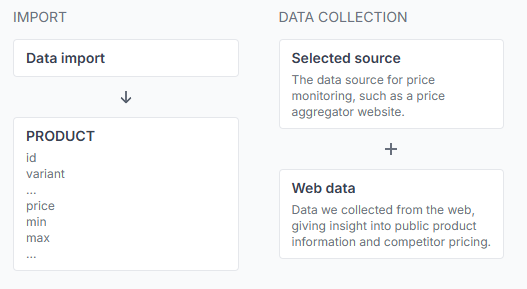
The seller creates a price synchronization for one selected price-comparison data source.
-
Product data is imported into the synchronization, including the product identifier, query, base price, and permitted price range.
-
B2BLIX submits each product's configured query to the selected data source according to the monitoring schedule.
-
The public result cards returned by the source are collected. Available information may include the product title, displayed price, seller, image, and product link.
-
B2BLIX applies the configured seller filters, skipped positions, target position, freshness rules, and pricing strategy.
-
The provisional result is checked against the product's minimum and maximum prices.
-
The final calculated value can be reviewed and then exported through XML or an available store integration.
To see the overall processing flow, open BuyBox schema when you are logged in. To understand the stages shown on that page, read Understanding the BuyBox schema for price aggregators.
How products are matched
B2BLIX uses the product's imported query to search the selected data source. An EAN may be used as the query, but it is not the only possible option.
Depending on the source, a query may also be a SKU, manufacturer part number, product title, category phrase, or another non-empty search value selected by the seller. Where a source supports it, a direct product-page URL may also be accepted.
B2BLIX checks that the query is present, but it does not automatically rewrite it, generate alternative searches, or perform a second search when the returned results are unsuitable.
B2BLIX also does not independently confirm that every returned result represents the same:
- Product model or generation
- Size, color, capacity, or other variant
- Condition
- Bundle or package quantity
- Promotion, membership offer, or delivery arrangement
You should test the exact query directly on the selected price-comparison platform before monitoring a large product group. Confirm that the returned cards are suitable for comparison with your own product.
A technically successful search does not guarantee a commercially correct product match. An unsuitable query can return another model or variant, and B2BLIX may process that result as an ordinary competitor offer.
How the comparison target is selected
B2BLIX does not always use the first or numerically cheapest visible result. The selected comparison target depends on the synchronization settings.
The main controls include:
- Seller name: Used to identify your own store in the collected result cards.
- Preferred sellers: Gives priority to specified sellers when at least one of them is present.
- Excluded sellers: Removes specified sellers from the comparison.
- Skipped leading offers: Allows you to ignore one or more leading listings when you do not want to compete with them.
- Target position: Defines whether the calculation should consider the first result, top 3, top 10, or the first page.
- Pricing strategy: Defines how B2BLIX reacts when your seller is detected, another seller is detected, or the seller state is undefined.
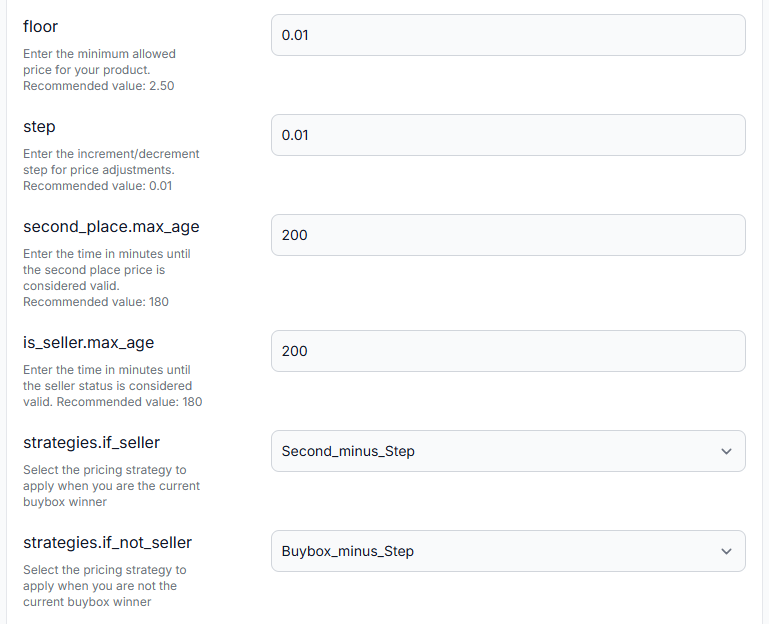
- Minimum and maximum prices: Protect the permitted calculation range for each product.
To review these controls, open Price synchronization in your account. For an explanation of the available settings, read Configure BuyBox settings for a price synchronization.
How the recommended price is calculated
After selecting a comparison target, B2BLIX applies the strategy configured for the product's current situation.
The main situations are:
- If seller: Your configured seller name was detected within the permitted freshness period.
- If not seller: Another seller was detected at the selected comparison position.
- Undefined: A sufficiently recent seller position is not available.
Depending on the selected strategy, B2BLIX may reduce the price, keep it unchanged, match a selected comparison offer, move slightly below a target, or increase the price toward another market reference.
The result is then checked against the product's permitted range. B2BLIX does not bypass the imported minimum and maximum price limits.
If no usable result cards are returned, the product normally uses its imported base price instead of receiving an unsupported competitive adjustment.
What to check in your account
1. Check the selected data source
One price synchronization belongs to one price-comparison platform. Confirm that the synchronization uses the intended source and market.
To view or create a synchronization, open Price synchronization. For page and setup instructions, read Price synchronization: view and create a synchronization.
2. Check the product query
- Confirm that the product has a non-empty query.
- Start with the EAN when it returns suitable results on the selected source.
- Use another appropriate query when the platform does not return useful EAN results.
- Test the exact query directly on the selected platform.
- Check that the returned products match the intended model and variant.
- Do not assume that B2BLIX will automatically correct an unsuitable query.
3. Check the imported product data
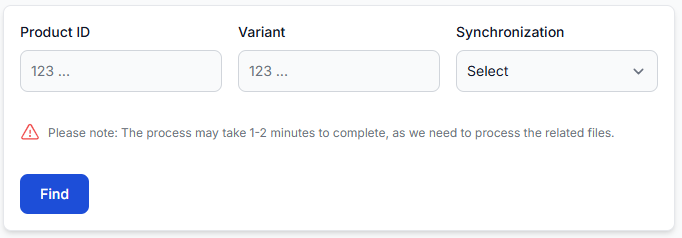
- Confirm the product ID and optional variant.
- Check the imported base price.
- Confirm that the required minimum and maximum prices are present.
- Check the product-level monitoring frequency if it overrides the synchronization default.
- Confirm that the prices use the correct currency and market context.
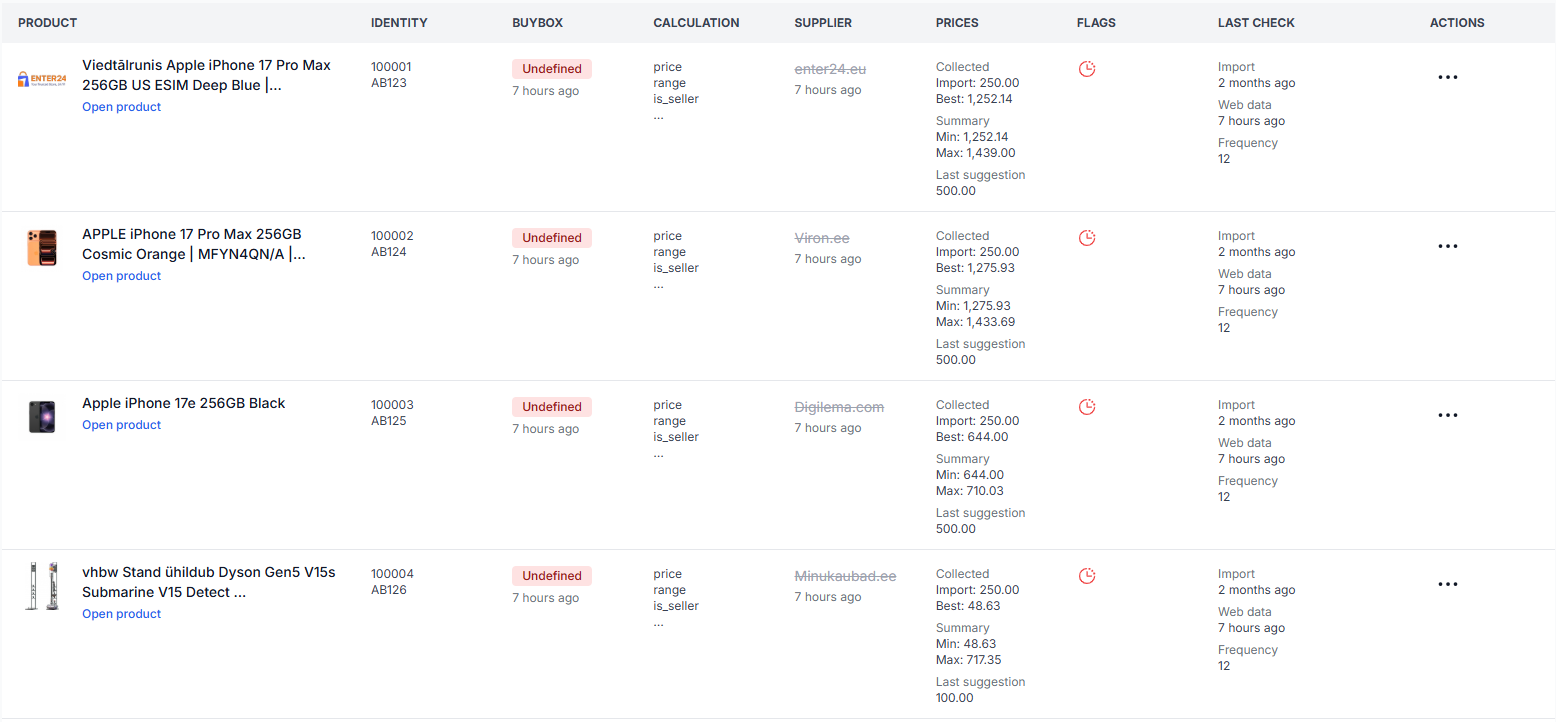
To inspect the products stored for your synchronizations, open All products. For details about the available columns and filters, read All products interface.
4. Check the collected public offers
Review the first and second collected result cards. Check the product titles, displayed prices, sellers, and product links before relying on the calculation.
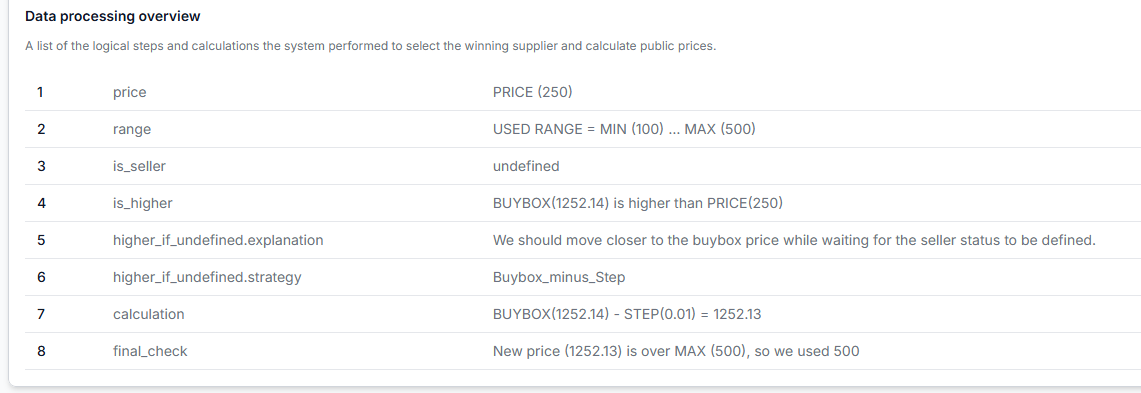
For a product-level review, open Product checker. To understand its imported data, public offers, exported output, and calculation overview, read Product checker: review product data and price calculations.
5. Check your seller identification
- Confirm that the configured seller name matches the name displayed by the selected platform.
- Check for spelling, spacing, punctuation, or domain differences.
- Remember that displayed seller names can change independently of B2BLIX.
6. Check the target position and seller filters
- Confirm the selected target position.
- Review preferred sellers and excluded sellers.
- Check whether one or more leading offers are being skipped.
- Make sure the settings reflect the sellers and market position you actually want to compete with.
7. Check minimum and maximum prices
Aggregator synchronizations use the price limits imported for each product. B2BLIX does not calculate these limits from marketplace category coefficients.
- Set a minimum price that protects your required margin.
- Set a maximum price that prevents an unsuitable high recommendation.
- Confirm that the base price is inside the intended commercial range.
- Review products without the required limits before enabling automatic price adjustment.
8. Check monitoring, import, and export schedules
Monitoring, synchronization, and export are related but separate processes.
- Monitoring frequency controls how often public data is collected from the selected price-comparison source.
- Import frequency controls how often B2BLIX reads your latest product data.
- Export frequency controls how often the calculated output is regenerated or sent.
To review these schedules, open Price synchronization general settings. For detailed field instructions, read Edit price synchronization general settings.
Changes to queries, monitoring frequency, pricing strategies, limits, or export settings can affect live prices, monitoring usage, and store catalog updates. Verify the current settings and test a small product group before enabling wider automatic export.
Common causes of unexpected recommendations
- The query returns the wrong product. A different model, variant, bundle, or promotional listing may be present in the results.
- The selected source does not return useful results for the EAN. Another carefully tested query may be required for that product and platform.
- Your seller is not detected. The seller name in B2BLIX may not match the name currently displayed by the data source.
- The first offer is intentionally ignored. A preferred-seller rule, seller exclusion, skipped position, or target-position setting may select another comparison target.
- The calculated price stops at a limit. The provisional result may be below the product minimum or above the product maximum.
- The source returns no product cards. The query may currently have no results. The product normally falls back to its imported base price.
- The collected information is no longer recent enough. B2BLIX may use an undefined strategy when the seller position or comparison information is older than the configured validity period.
- The latest monitoring result has not reached the export yet. Public-data collection and output generation may follow different schedules.
- Another synchronization shows a different result. Each platform synchronization has its own collected offers, filters, strategies, and result history.
Example
A seller imports a product with a base price of €100.00, a minimum price of €90.00, and a maximum price of €115.00.
The selected data source returns a suitable competitor offer at €95.00. The configured strategy is to move below the selected target by €0.01. The provisional recommendation is therefore €94.99.
Because €94.99 is inside the permitted range, it can become the final calculated price.
If the same query actually returned a cheaper but different product variant, B2BLIX could still process that result. The seller should therefore open product checker, inspect the collected title, seller, and product link, and confirm that the comparison is valid before exporting the calculated price.
Using more than one price-comparison platform
The same general repricing workflow can be used with multiple supported data sources, but each source requires its own price synchronization.
For example, one synchronization may monitor one price-comparison platform while another synchronization monitors a different platform. Each synchronization has its own:
- Imported products and queries
- Monitoring schedule
- Seller identity and filters
- Target position
- Pricing strategies
- Reports and collected result history
- Export settings
The results remain independent and create separate monitoring operations. Monitoring the same product on several platforms can therefore increase monitoring usage.
Some data sources may require a more complex collection setup and may have a different pricing classification. Check the current source availability and pricing before planning a larger rollout.
What to do next
- Create one price synchronization for one important data source.
- Begin with a small group of products.
- Test every initial query directly on the selected platform.
- Confirm the base price, minimum price, maximum price, and currency for each product.
- Configure your seller name, target position, seller filters, and pricing strategies.
- Run monitoring and calculation for the limited product group.
- Review the collected cards and calculation steps in product checker.
- Check the generated XML or store-integration output before enabling automatic updates.
- Review the first synchronization reports for import, calculation, and export issues.
- Expand the product group only after the results and monitoring usage are understood.
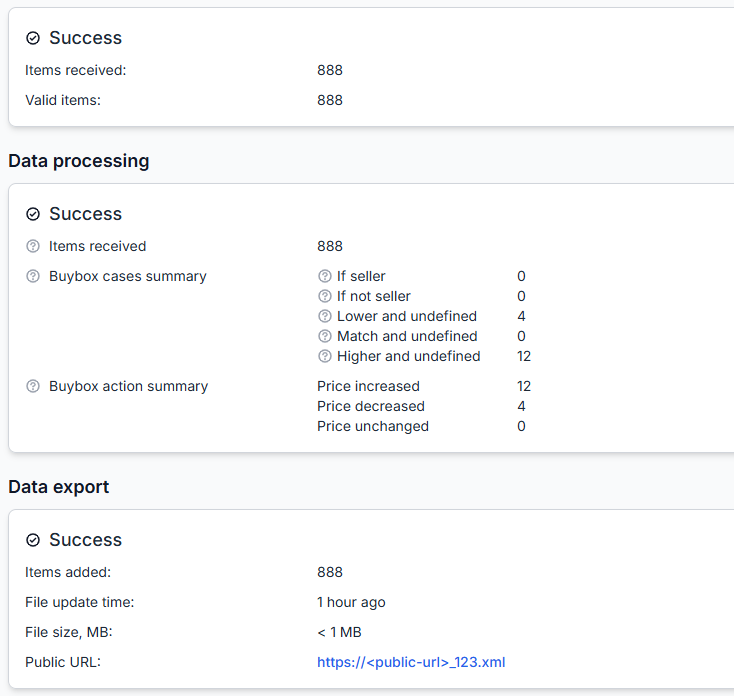
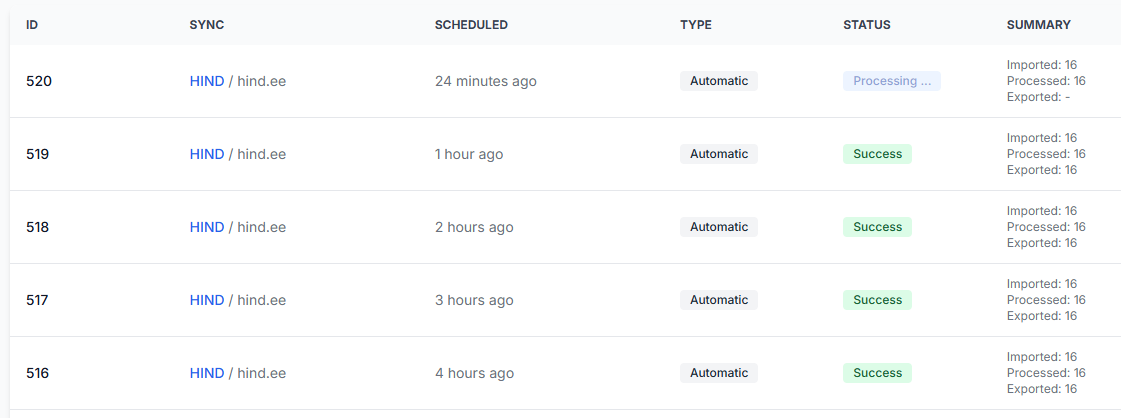
To review completed processing runs, open Reports. For help reading the processing summaries and export results, read Reports and synchronization report details.