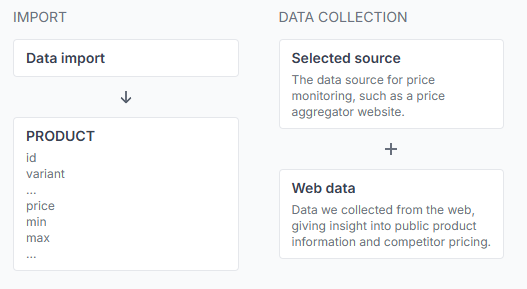
Reports and synchronization report details
Learn how to read synchronization statuses, product counts, BuyBox case summaries, price actions, validation results, and export information in B2BLIX reports.
What the reports page is for
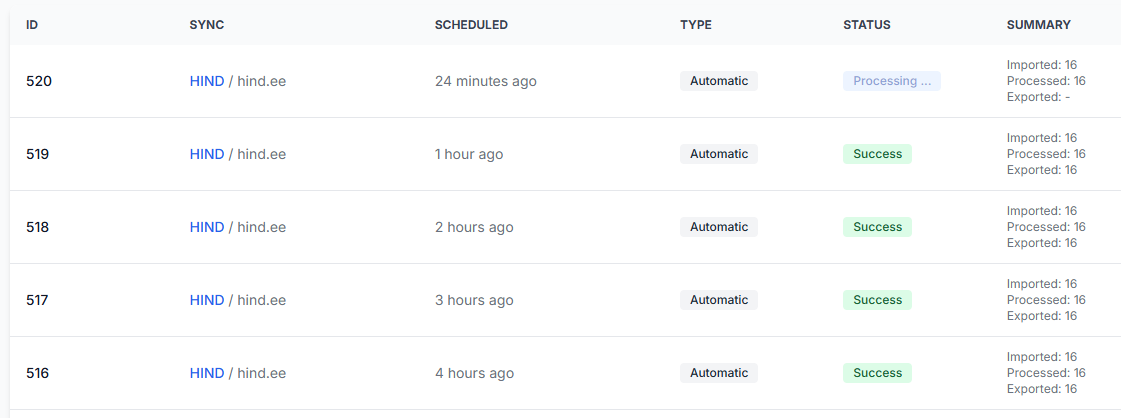
The reports page contains synchronization reports from across your account. It includes synchronizations started automatically according to a schedule and synchronizations started manually by a user.
Each report represents one specific synchronization run. You can use it to check when the run took place, whether it completed successfully, how many products passed each stage, and what pricing actions were calculated.
This page is especially useful after:
- Running a synchronization manually.
- Changing an import file or spreadsheet.
- Updating product prices, minimum prices, or maximum prices.
- Changing buybox calculation settings.
- Investigating missing products or unexpected exported prices.
The reports interface is read-only. It allows you to review results, but it does not provide fields that can be edited or saved.
What you can do on this page
- Review all manual and automatic synchronization runs.
- Check whether a synchronization is processing, successful, or failed.
- Compare imported, processed, and exported product counts.
- Review data-validation issues found during import.
- See how products were divided between buybox calculation cases.
- See how many calculated prices increased, decreased, or remained unchanged.
- Open the full report for a specific synchronization run.
- Review the generated output information and public XML url when applicable.
The reports list
The main reports page provides a summary of each synchronization run. The exact layout may vary, but the following information is normally available.
| Column or field | What it means |
|---|---|
| Synchronization | The synchronization instance that produced the report. This may be shown as a link that opens the relevant synchronization. |
| Scheduled | The date and time associated with the synchronization run. |
| Type | Shows whether the synchronization was started automatically according to its schedule or manually by a user. |
| Status | Shows whether the run is still processing, completed successfully, or failed. |
| Summary | Provides the main product counts, such as the number of imported, processed, and exported items. |
| Full report | Opens the detailed report for that specific synchronization run. |
Report statuses
| Status | How to interpret it |
|---|---|
| Processing | The synchronization has not finished yet. Some totals or output information may not be available until processing is complete. |
| Success | The displayed synchronization stage completed successfully. You should still review the item counts and any validation messages. |
| Failed | The synchronization or one of its stages did not complete successfully. Open the full report to review the available error information. |
A successful status does not always mean that every imported product was suitable for calculation. Always compare the received, valid, processed, and exported counts.
Opening a detailed synchronization report
The detailed report shows the complete result of one synchronization run. It may begin with general information about the synchronization, including its type, schedule, import source, export destination, and other settings used during that run.
For example, the import source may be a google spreadsheet or a url-based data file. The export destination may be a public XML file or an available store integration.
The main report is divided into three stages:
- Data import
- Data processing
- Data export
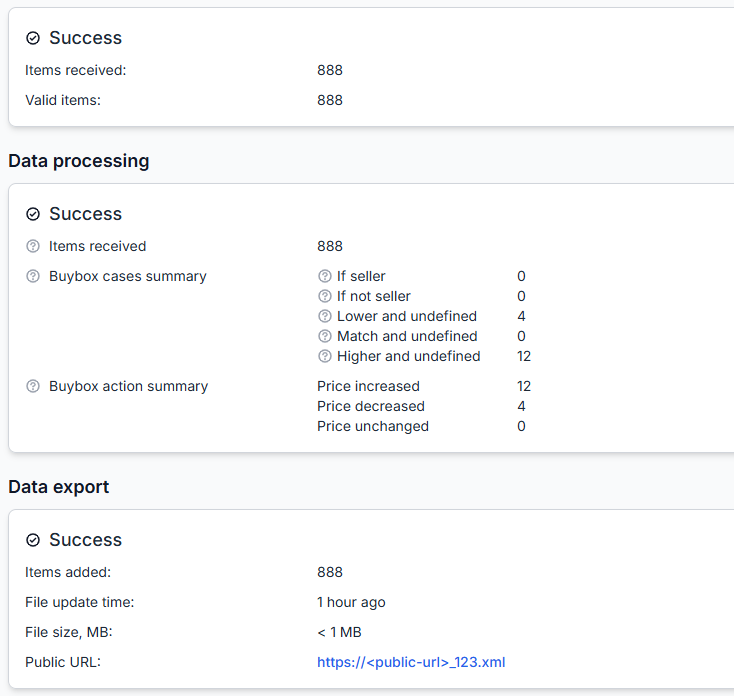
Data import
The data import block shows how many product records B2BLIX received and how many passed import validation.
| Field | What it means | What to check |
|---|---|---|
| Items received | The total number of product records extracted from the imported file or spreadsheet. | Check that the number is close to the number of products you expected to send. |
| Valid items | The number of imported records that passed the required data checks. | Compare this number with items received. A lower number means that one or more records did not pass validation. |
A product record needs a stable id and a non-empty query so that it can be identified and monitored. The price, min, and max values are also important for controlled price calculation.
If the required price limits are missing, the product should not be automatically adjusted outside a confirmed safe range. Incorrect values can also cause validation issues. For example, a maximum price that is lower than the minimum price should be reviewed.
If the valid-item count is lower than the received-item count, review the validation information in the report before checking the later processing stages.
Data processing
The data processing block summarizes how the valid imported records were handled by the B2BLIX buybox calculation.
In this interface, a buybox case means a branch of the B2BLIX pricing model. It describes the available seller-status information and the relationship between the imported price and the selected comparison price.
Items received
The items received value in this block is the number of valid items passed from the import stage into data processing.
Buybox cases summary
| Case | What it means |
|---|---|
| If seller | The seller was identified in the selected buybox position using sufficiently recent information. The configured seller strategy is used, which may keep the price or allow a controlled increase. |
| If not seller | A different seller was identified in the selected position using sufficiently recent information. The configured non-seller strategy is used, which may reduce or maintain the price. |
| Lower and undefined | The seller status is not currently confirmed, and the imported price is higher than the selected buybox comparison price. |
| Match and undefined | The seller status is not currently confirmed, and the imported price matches the selected buybox comparison price. |
| Higher and undefined | The seller status is not currently confirmed, and the imported price is lower than the selected buybox comparison price. The configured strategy may move the price closer to the comparison price. |
An undefined case does not automatically mean that processing failed. It means that B2BLIX did not have sufficiently recent seller-position information for that product, so the relevant undefined strategy was used.
The values in this summary are counts of products assigned to each calculation case. Use them to understand the overall result of the synchronization, rather than as a product-by-product explanation.
Buybox action summary
The buybox action summary compares the price used for the synchronization with the final calculated result. It groups the results into three categories.
| Action | What it means |
|---|---|
| Price increased | The final calculated price was higher than the price used for comparison in that synchronization. |
| Price decreased | The final calculated price was lower than the price used for comparison. |
| Price unchanged | The calculation did not produce a different price. |
This summary shows the result of the configured strategy. It does not explain the complete calculation for each individual product. Use product checker when you need to review imported values, comparison information, the selected strategy, and the final range check for a specific product.
The report is read-only, but it may describe calculated prices that have already been included in an XML file or sent through a connected export workflow. Investigate unexpected price actions before relying on the generated output.
Data export
The data export block confirms whether the calculated output was generated and provides information about that output.
| Field | What it means | What to check |
|---|---|---|
| Items added | The number of product records added to the generated output. | Compare this with the valid and processed counts. A large difference may require further review. |
| File update time | The time when the export file was last generated or updated. | Confirm that the timestamp belongs to the synchronization run you are reviewing. |
| File size, MB | The approximate size of the generated export file. | An unexpectedly small file may indicate that fewer items were exported than expected. |
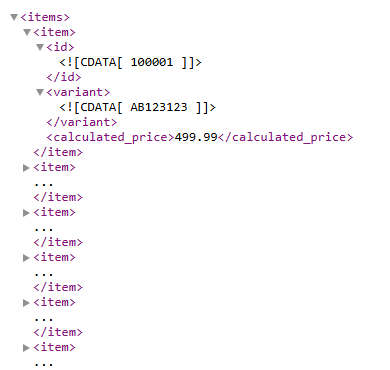
| Public url | The url of the generated public XML output when this export method is enabled. | Open it when you need to inspect the generated result or provide it to the configured store or catalog workflow. |
The public url normally remains constant for the synchronization instance and is also available in the synchronization settings. The contents of the file can be updated by later synchronization runs even though the url stays the same.
Treat the public url as an integration endpoint. Share it only with systems or people that need access to the generated product data.
How to review a report safely
-
Confirm the synchronization.
Check that you opened the report for the correct synchronization, data source, and run time.
-
Check the overall status.
If the report is still processing, wait for completion before comparing final totals.
-
Compare received and valid items.
If fewer products are valid, review the import-validation information for missing or incorrect attributes.
-
Review the buybox cases.
Look for an unexpected concentration of undefined cases, especially after changing seller identification or data-validity settings.
-
Review the price actions.
Confirm that the balance of increases, decreases, and unchanged prices is reasonable for your strategy.
-
Check the export result.
Confirm the item count, update time, file size, and output url before using the generated data in your store workflow.
-
Investigate individual products when needed.
Use product checker when a report total is not enough to explain why a particular price was calculated.
Common mistakes
-
Looking only at the success status.
A synchronization can complete while some imported records remain invalid or unsuitable for automatic adjustment.
-
Ignoring differences between stage totals.
Always compare items received, valid items, processed items, and items added to the export.
-
Treating undefined cases as technical errors.
Undefined normally refers to unavailable or outdated seller-status information, not necessarily a failed synchronization.
-
Assuming the reports page changes settings.
This interface is read-only. Changes must be made in the appropriate synchronization or buybox settings page.
-
Using an old report to judge current output.
Check the synchronization timestamp and export update time before making conclusions.
-
Sharing the public output url unnecessarily.
The url can expose generated product data to anyone who has access to it.
Example use case
A seller opens a successful synchronization report after an automatic run. The data import block shows 888 items received and 888 valid items, confirming that all received records passed the displayed import validation.
In data processing, the case summary shows four products in lower and undefined and twelve products in higher and undefined. The action summary shows twelve price increases and four price decreases.
This tells the seller that the listed pricing actions were calculated through undefined seller-status branches. It does not mean that the synchronization failed. If these results are unexpected, the seller should review the seller-identification settings, data freshness, and individual calculations in product checker.
The data export block shows 888 items added, a recent file update time, a file size, and a public url. The seller can use these values to confirm that the output was generated and inspect the resulting XML before relying on it in the connected catalog workflow.