Price synchronization: view and create a synchronization
This guide explains the synchronization list and every main setting in the Create New Synchronization form, including import, monitoring, and export schedules.
What is a price synchronization?
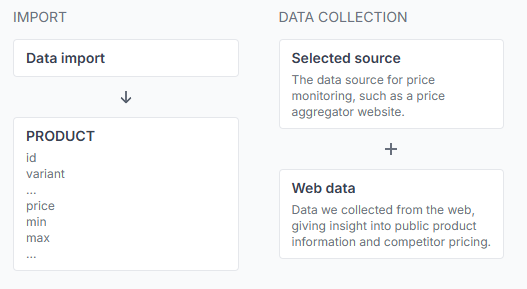
A price synchronization is a separate configuration instance within B2BLIX. It connects one selected price comparison source with:
- Your imported product data.
- A product-monitoring schedule.
- BuyBox calculation settings.
- An export format or store integration.
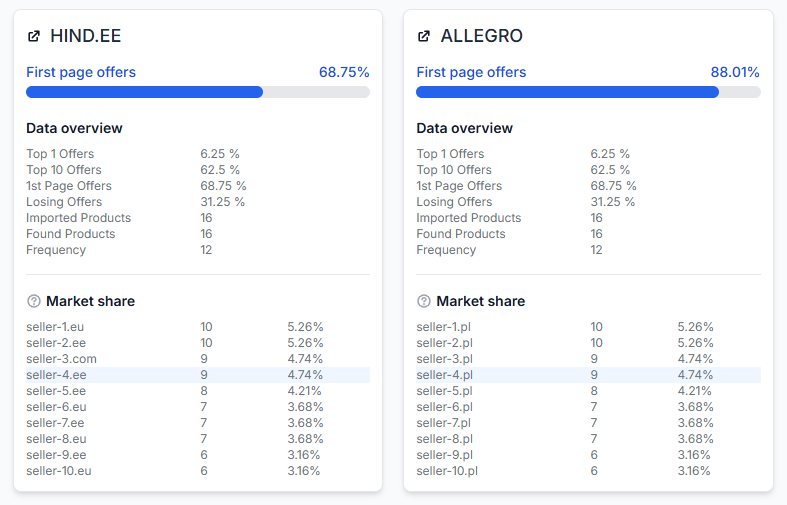
- Reports and product-level results.
Each synchronization works independently. For example, a synchronization for Ceneo and a synchronization for Kaina24 use separate product monitoring, settings, reports, and usage.
Important: A synchronization is a configuration instance, not a promise that every action happens immediately. Import, product monitoring, calculation, and export use separate schedules selected in the settings.
Sellers normally open this interface immediately after onboarding. Creating at least one synchronization is the first step required before B2BLIX can import products and begin collecting public comparison data.
The synchronization list
The main Price Synchronization page shows the synchronization instances already created in your account.
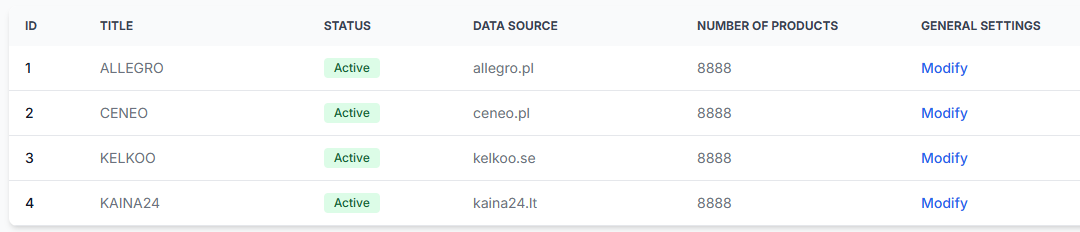
The list can include the following columns and actions:
| Column or action | Meaning |
|---|---|
| ID | The internal identifier of the synchronization instance. |
| Title | The user-defined name used to identify the synchronization. |
| Status | Shows whether scheduled processing is active or inactive. |
| Data source | The selected price comparison platform or source domain used for monitoring. |
| Number of products | The number of products currently stored for that synchronization. |
| General Settings | Opens the import, collection, export, title, and activation settings for the selected instance. |
Depending on the interface view, a synchronization can also provide shortcuts to its BuyBox settings and Reports. BuyBox settings control pricing strategies and comparison rules. Reports show the results of synchronization processing.
Use the Create new synchronization button to open the creation form and add another independent synchronization instance.
What you can do in the creation form
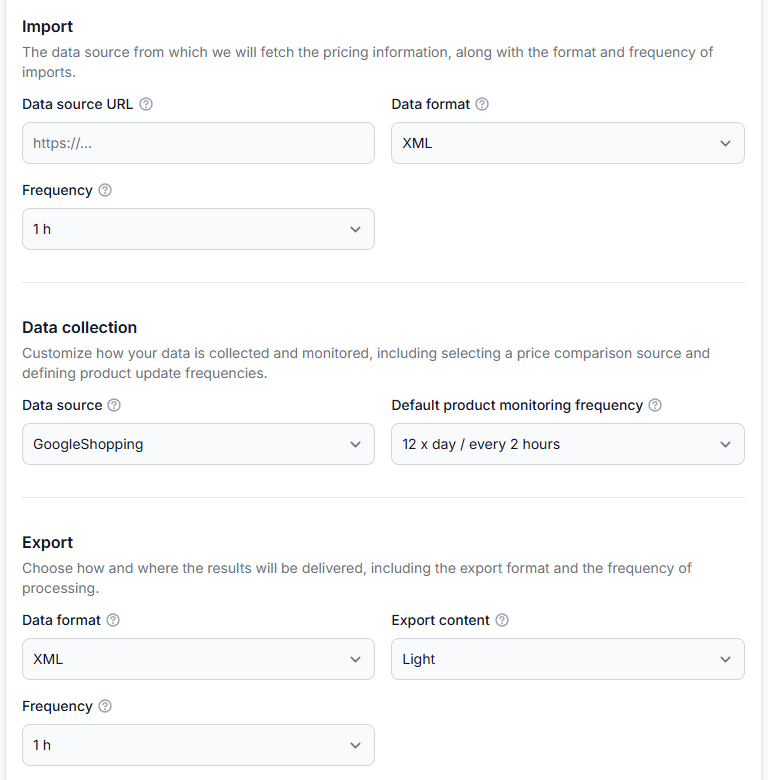
The Create New Synchronization form lets you:
- Give the synchronization a recognizable title.
- Choose whether scheduled processing should start immediately.
- Connect an XML feed or Google Spreadsheet containing your products.
- Choose how often B2BLIX should import that source.
- Select the price comparison platform to monitor.
- Set a default monitoring frequency for products.
- Choose how calculated results will be exported.
- Choose how often calculations and exports will be processed.
Live processing and cost warning: When Active is set to Yes, B2BLIX treats the synchronization as ready for scheduled processing. It may import the supplied product list and perform chargeable searches for the products according to their monitoring frequencies.
General settings
| Field | What it means | What to check |
|---|---|---|
| Title | A required, user-defined name that helps you identify this synchronization in the list. | Use a clear name such as the source, country, store, or product group. The title does not affect calculations. |
| Active | Controls whether B2BLIX processes the synchronization according to its schedules. | Select No while preparing or testing the setup. Select Yes only when the feed and settings are ready for scheduled processing. |
Examples of useful titles include “Ceneo Poland”, “Kaina24 Main Catalog”, or “Priority Products – Finland”. Avoid titles such as “Test” or “New Sync” when you expect to manage several instances.
Import settings
The Import section tells B2BLIX where your own product data is located and how often that data should be downloaded.
| Field | What it means | Available settings and safety notes |
|---|---|---|
| Data source URL | The required URL from which B2BLIX retrieves your product information. | The address must be valid, available without an interactive sign-in, and return data in the selected format. |
| Data format | The format B2BLIX should expect at the supplied URL. | The creation form supports XML and Google Spreadsheets. |
| Frequency | How often B2BLIX downloads the latest version of your product source. | Available intervals are 30 minutes, 1 hour, 2 hours, and 3 hours. |
The import frequency does not control how often competitor information is collected. It controls only how often B2BLIX checks your XML file or spreadsheet for updated product data.
Using a Google Spreadsheet
The spreadsheet must be accessible through its link without requiring the B2BLIX process to sign in. In Google Sheets, open the document’s sharing settings, set general access to Anyone with the link, and use the Viewer permission.
Do not grant editing permission when view-only access is sufficient. Before creating the synchronization, open the shared link in a private browser window to confirm that it can be viewed without signing in.
Keep source data private where possible: Do not place passwords, API credentials, private customer data, or other confidential information in the product feed. Anyone who has access to a publicly shared source link may be able to view its contents.
Data collection settings
The Data collection section controls which public price comparison source B2BLIX should search and how often products should normally be monitored.
| Field | What it means | What to check |
|---|---|---|
| Data source | The price comparison platform from which B2BLIX collects public product-result cards. | Select the platform that matches the market, language, currency, and queries in your imported product data. |
| Default product monitoring frequency | The default number of times per day each imported product is checked. | A higher frequency can provide fresher observations but creates more monitoring usage. |
The source list is grouped by country and can contain many supported platforms. One synchronization can use only one selected source. To monitor the same product on another platform, create a separate synchronization.
The available default monitoring frequencies are:
| Checks per day | Approximate interval |
|---|---|
| 1 | Every 24 hours |
| 2 | Every 12 hours |
| 4 | Every 6 hours |
| 6 | Every 4 hours |
| 8 | Every 3 hours |
| 12 | Every 2 hours |
| 24 | Every hour |
| 48 | Every 30 minutes |
| 96 | Every 15 minutes |
An individual product can override this default through the frequency attribute in the imported data. This lets you monitor important or fast-changing products more frequently and use a slower schedule for less important products.
Monitor only the products you need: B2BLIX attempts to process every valid product included in the synchronization. Adding a large catalog or selecting a high monitoring frequency can significantly increase chargeable data collection.
Export settings
The Export section controls how calculated results are prepared or sent after B2BLIX uses the latest available imported and collected data.
| Field | What it means | What to check |
|---|---|---|
| Data format | The destination or format for calculated results. | Options can include XML and supported store integrations such as PrestaShop or WooCommerce. The exact options available can depend on the account configuration. |
| Export content | Controls how much product information is included in an XML export. | Light includes the product ID, variant, and calculated price. Full includes all available product and comparison information. |
| Frequency | How often B2BLIX uses the latest data, performs the BuyBox calculation, and processes the selected export. | Available intervals are 30 minutes, 1 hour, 2 hours, and 3 hours. |
When XML is selected, B2BLIX generates an output URL. The URL becomes available in the synchronization’s General Settings after the instance has been created and processed.
Protect the output URL: Treat a generated XML address as account data. Do not publish or share it unless the intended receiving system requires access.
PrestaShop integration fields
When PrestaShop is selected, additional fields are displayed:
| Field | Purpose |
|---|---|
| PrestaShop API key | A webservice key created in the PrestaShop administration interface. The current instructions require product permissions and an enabled webservice. |
| PrestaShop domain | The full store address, such as https://store.example, entered without a trailing slash. |
| PrestaShop tax rate (%) | The default tax percentage used when converting a tax-inclusive platform price to the net price required by the integration. |
Check the domain, tax rate, product mapping, and permissions carefully before activating a direct store integration. An incorrect tax rate or product identifier can cause an incorrect value to be sent to the wrong product.
Import schema
The Import schema table on the creation page describes the product fields that can be supplied through the XML file or Google Spreadsheet.
| Attribute | Requirement | Purpose |
|---|---|---|
id |
Required | A stable product identifier from your store, an EAN, or another unique value. It is combined with variant when a variant is supplied. |
variant |
Optional | An additional identifier for a size, colour, model, or other product variation. |
query |
Required | The exact search text submitted to the selected comparison source. It can be an EAN, SKU, product title, or another non-empty query chosen by the seller. |
frequency |
Optional | Overrides the default monitoring frequency for this product. Accepted values are 1, 2, 4, 6, 8, 12, 24, 48, or 96 checks per day. |
min |
Optional, but needed for automatic adjustment | The lowest price the calculation is allowed to suggest. Without the required pricing limits, the product is excluded from automatic price adjustment. |
max |
Optional, but needed for automatic adjustment | The highest price the calculation is allowed to suggest. It prevents the calculated price from exceeding the seller’s permitted range. |
price |
Optional | The product’s regular or base catalog price before the B2BLIX calculation. |
delete |
Optional | Set this value to true to remove the specified product during import. The interface also states that products absent from continuing imports can be removed automatically after 72 hours. |
Important query responsibility
B2BLIX checks that the query field is present, but it does not confirm that the query identifies the correct product. It does not automatically rewrite an unsuitable query or verify that all returned result cards represent the same model, variant, condition, or promotion.
Test each initial query directly on the selected comparison platform. An EAN is often a useful starting point, but results vary by source. A technically successful search can still return an unsuitable comparison.
Source-specific instructions
The creation page can display instructions that apply only to a particular source or export integration. Follow those instructions when they are shown.
- For hind.ee, the current page states that
querycan be a search phrase or a direct hind.ee product-page URL. - For PrestaShop, the current page instructs sellers to match imported identifiers with the relevant PrestaShop Product ID so that products are mapped correctly.
Export schema
The Export schema table explains the fields that can appear in the generated output. A Light export contains only the basic identifiers and calculated price. A Full export can include the following groups:
| Field or group | Meaning |
|---|---|
id and variant |
The identifiers received from the import. |
calculated_price |
The final price returned by the calculation. When a calculation cannot be completed, the imported base value can be returned instead. |
buybox_calculation.status |
Indicates whether the BuyBox calculation completed successfully. |
buybox_calculation.suggested_price |
The price suggested by the calculation. |
buybox_calculation.price_status |
Shows whether the suggested price moved up, down, or remained equal to the imported price. |
configuration.query, min, max, price, and frequency |
The product settings originally received from the import. |
timestamps.last_seen_import |
The last time the product was imported or updated from the seller’s source. |
timestamps.buybox_last_seen |
The last time usable comparison data was collected for the product. |
product_details.title, image, and first_price |
Summary information from the first public result returned by the selected source. |
buybox.first.* |
Details of the first result, including image, price, title, product URL, supplier URL, and supplier name. |
buybox.second.* |
Equivalent details for the second result. |
buybox.others.* |
A list of the remaining result cards retained from the page, beginning with the third result. |
The word “BuyBox” in this output refers to the B2BLIX comparison and calculation model. It does not mean that the selected price comparison platform has named an official winner.
What happens after you select create
The Create button creates a new synchronization instance. It does not edit an existing synchronization.
If Active is set to Yes, the system begins treating the new instance as live. According to the selected schedules, B2BLIX can:
- Download the latest product source.
- Import and update the product records.
- Collect public results from the selected comparison platform according to each product’s monitoring frequency.
- Use sufficiently recent information in the configured BuyBox calculation.
- Generate XML output or send results through the selected store integration.
These steps do not necessarily occur at the same moment. For example, a source can be imported every hour while products are monitored every six hours and an export is processed every two hours.
After creation, use the synchronization’s general settings, BuyBox settings, reports, and product checker workflows to review and complete the setup.
How to create a synchronization safely
- Start with a small product group. Do not begin by importing the complete catalog.
- Use a clear title. Include the platform, market, or product group.
- Set active to No. Complete and review the setup before starting scheduled monitoring.
- Check the source URL. Confirm that it opens without a sign-in and contains the expected XML or spreadsheet data.
- Verify the import schema. Confirm that every product has a stable
idand non-emptyquery. - Add safe pricing limits. Supply appropriate minimum and maximum values for products intended for automatic adjustment.
- Test the queries. Search each initial query directly on the selected comparison platform and review the returned cards.
- Select a reasonable monitoring frequency. Use faster schedules only for products that need them.
- Review the export method. Check XML content or integration identifiers before allowing results to affect the store.
- Create and inspect the instance. Review reports and product checker results for the limited product group.
- Activate gradually. Set the synchronization to active only after the imported data, collected results, and calculated output are understood.
Common mistakes
- Confusing the three frequencies. Import frequency, monitoring frequency, and export frequency control different actions.
- Activating too early. An active synchronization can begin scheduled and chargeable monitoring before the queries and limits have been reviewed.
- Using a private or invalid source URL. A file that works only while you are signed in cannot be reliably imported.
- Selecting the wrong import format. Choose XML only for an XML source and Google Spreadsheets only for the supported spreadsheet structure.
- Selecting the wrong comparison source. The source should match the intended country, market, language, and currency.
- Using broad or inaccurate queries. Similar models, variants, sponsored cards, or unrelated products may appear in the results.
- Omitting minimum or maximum prices. Products without the required calculation limits are not automatically adjusted.
- Importing too many products at a high frequency. Every successful product check on every synchronization creates separate monitoring usage.
- Assuming zero results are free. A technically successful request that returns no product cards still represents a completed data-collection operation.
- Using incorrect integration identifiers. A mismatch between imported IDs and store product IDs can update the wrong item or prevent an update.
- Entering an incorrect tax rate. This can produce an incorrect net price for a direct PrestaShop export.
- Sharing credentials or output URLs. API keys, source URLs, and generated output addresses should be handled as confidential account information.
Example use case
A seller wants to begin monitoring 50 important products on Ceneo.
- The seller selects Create new synchronization.
- The title is set to Ceneo – Priority Products.
- Active is initially set to No.
- An XML product-feed URL is entered, with an import frequency of 1 hour.
- ceneo.pl is selected as the data-collection source.
- The default monitoring frequency is set to 4 times per day, or approximately every six hours.
- XML is selected as the export format, with Light content and an export frequency of 1 hour.
- Each imported product includes an ID, tested query, base price, minimum price, and maximum price.
- The synchronization is created and its first products are reviewed through product checker and the generated output.
- After the seller confirms that the result cards and calculations are suitable, the synchronization is changed to active.
This gradual approach reduces the risk of unsuitable comparisons, unexpected monitoring usage, or incorrect prices being sent to the seller’s catalog workflow.