How to view reports for a price synchronization
Open the reports for a specific price synchronization to review its latest runs, current status, and basic import, processing, and export totals.
What this page is used for
The synchronization reports page shows how a particular price synchronization has been executed recently. It helps you confirm whether scheduled or manually started runs are being processed successfully.
A synchronization instance connects its selected data source, product import configuration, monitoring settings, BuyBox settings, export setup, and processing history. The reports opened from the Price Synchronization page are automatically limited to the selected synchronization instance. :contentReference[oaicite:0]{index=0}
This is the same reporting interface that is available from the general Reports section, but with the relevant synchronization already selected.
How to open reports for a synchronization
- Open the Price Synchronization section.
- Find the synchronization instance that you want to review.
- Locate the Reports column.
- Click View.
- Review the most recent synchronization runs shown in the report list.
Open this page when you want to confirm that a synchronization has run, check its current status, or review the details of a specific run.
What you can do on this page
This is mainly a read-only page. You can:
- Review the latest runs for the selected synchronization.
- See when each run was scheduled or started.
- Check whether a run was automatic or manual.
- Review the current processing status.
- Compare the number of imported, processed, and exported products.
- Open the full report for a specific run.
You cannot change synchronization settings from this report list. General synchronization settings and BuyBox settings are managed from their separate configuration pages.
Main columns in the report list
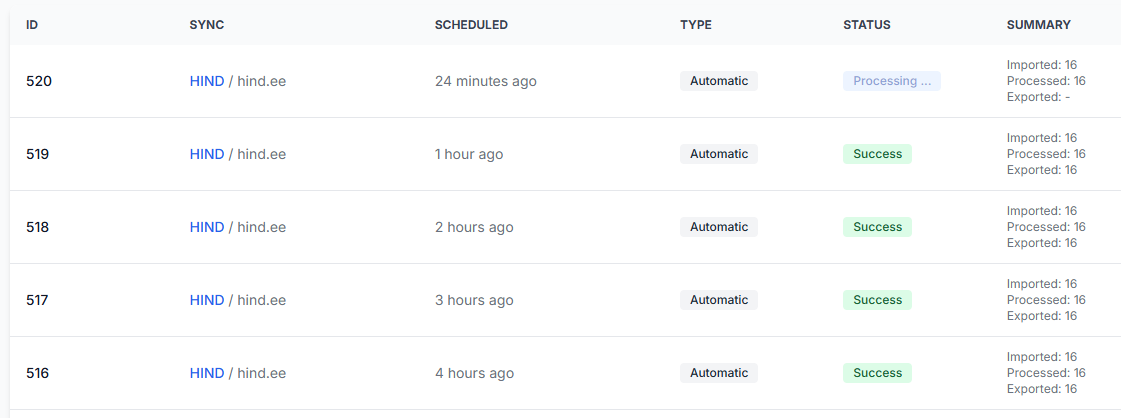
| Column | What it means | How to use it |
|---|---|---|
| ID | The reference number of the synchronization run. | Use it to distinguish one run from another when reviewing recent activity. |
| Sync | The synchronization instance associated with the report. It may show the synchronization title and selected data source. | Confirm that you are reviewing the intended synchronization. |
| Scheduled | Shows when the run was scheduled or started, such as a number of minutes or hours ago. | Use it to identify the newest run and compare it with earlier runs. |
| Type | Shows how the synchronization was started. | Automatic means it was started according to the configured schedule. Manual means a user started it using the manual synchronization action. |
| Status | Shows the current result or processing state of the run. | Check whether the run is still processing, has completed successfully, or has failed. |
| Summary | Shows basic totals for imported, processed, and exported products. | Use these numbers for a quick check before opening the full report. |
Understanding report statuses
Processing
The synchronization is still running. Some summary values may not yet be available. For example, the exported count may be shown as a dash until export processing has finished.
Success
The synchronization run has completed successfully. Review the summary totals to confirm how many products were imported, processed, and exported.
Failed
The run did not complete successfully. A single failed run does not always mean that the synchronization configuration is permanently unusable. Check the next run and open the full report when more information is needed.
Do not treat a report marked Processing as a failure. Wait for the run to finish and refresh or reopen the report list before evaluating the result.
How to interpret the summary
The summary provides a quick overview of the main processing stages:
- Imported shows how many product records were received from the configured product data source.
- Processed shows how many imported records were handled during the synchronization run.
- Exported shows how many records were included in the generated output or sent through the configured export workflow.
These values can be the same, but they should not automatically be expected to match in every situation. Open the full report when you need more detailed information about one run.
How to use this page safely
- Confirm the synchronization name and data source in the Sync column.
- Start with the most recent report at the top of the list.
- Check whether its status is Processing, Success, or Failed.
- Review the imported, processed, and exported totals.
- Open the full report when the status or totals require closer review.
- Compare the result with the next scheduled run before changing synchronization settings because of one incomplete or failed report.
This page does not change live prices, monitoring frequency, export settings, or product visibility. It only displays processing history. Any changes must be made in the relevant synchronization settings interface.
Common mistakes
- Assuming that processing means failed. The run may still be importing, calculating, or exporting data.
- Reviewing the wrong synchronization. Check the Sync column before interpreting the results.
- Looking only at the imported count. Also review the processed and exported counts to understand how far the run progressed.
- Expecting an export total before processing is complete. A dash or incomplete value can be normal while the run is still active.
- Changing settings after one unusual run. First review the full report and compare it with a later synchronization.
Example use case
A seller wants to confirm that the latest scheduled synchronization has completed. They open Price Synchronization, find the required synchronization, and click View in the Reports column.
The newest row is marked Processing, with 16 products imported and processed but no exported total yet. The seller waits for processing to finish instead of changing the synchronization settings immediately.
When the next completed row shows Success with 16 imported, 16 processed, and 16 exported products, the seller can confirm that the synchronization workflow completed normally. They can open the full report if they need details about the calculation or export stages.