Price synchronization: edit general settings
The General Settings page lets you update the main configuration of an existing price synchronization, including its status, data source, schedules, and export method.
What this page is for
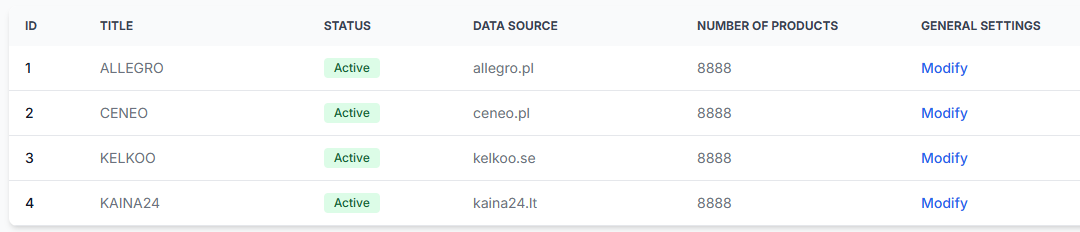
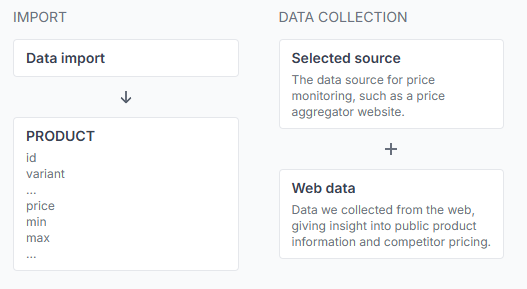
Each price synchronization is a separate configuration that connects an imported product source, one selected price comparison source, monitoring settings, calculation settings, and an export destination. The Edit general settings page controls the general configuration of one synchronization instance.
Open this page when you need to rename a synchronization, activate or deactivate it, replace an import URL, change a schedule, select a different data collection source, or update the export configuration.
Most fields are the same as those used when creating a synchronization. For a detailed explanation of the initial setup fields, review the guide titled Price synchronization: view and create a synchronization.
What you can do on this page
- Change the synchronization title.
- Set the synchronization as active or inactive.
- Update the product-data import URL, format, or import schedule.
- Change the selected price comparison data source.
- Change the default product-monitoring frequency.
- Update the export format, destination, content settings, or export schedule.
- View the generated public XML URL when XML output is available.
- Run the synchronization manually.
- Review import and export format instructions.
- Access the synchronization deletion control.
Warning: Changes on this page can affect data collection, monitoring usage, calculated output, and prices sent to a connected store workflow. Review all changed fields before saving.
Main fields and controls
| Field or control | What it means | What it affects |
|---|---|---|
| Title | A name used to identify the synchronization in the synchronization list and reports. | Display and organization only. |
| Active | Controls whether data collection is active for this synchronization. | Scheduled data collection for this synchronization. |
| Import URL | The location from which B2BLIX reads the store's product data when URL-based import is used. | Product imports and the catalog data available for later calculation. |
| Import format | The format of the supplied product data. | How B2BLIX reads the imported fields and product records. |
| Import frequency | How often B2BLIX checks the configured import source for updated product data. | Import timing. It does not control competitor monitoring or export timing. |
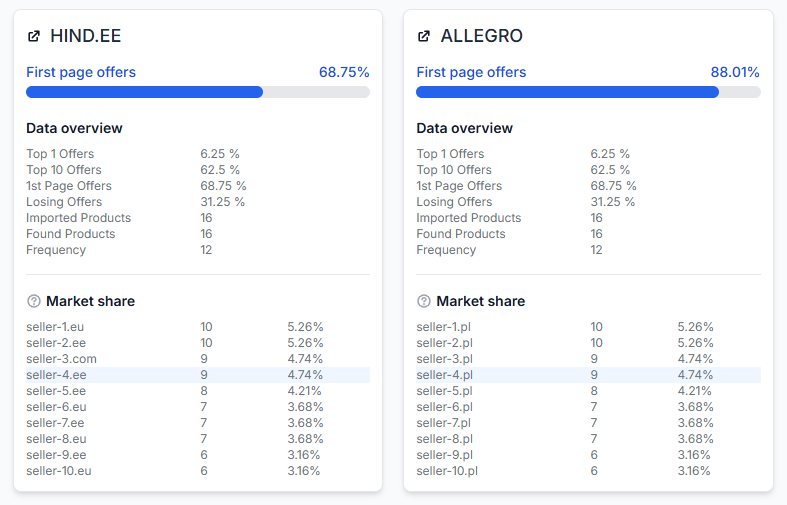
| Data collection source | The selected price comparison platform used to collect public offer information. | Which external source is checked for the product queries in this synchronization. |
| Default product-monitoring frequency | How often products are normally checked on the selected data source. | Monitoring timing and monitoring usage. A product-level frequency may override this default. |
| Export format | The format used for calculated output, such as XML or an available store integration. | How calculated prices are prepared or sent to the next workflow. |
| Export content | The available content configuration for the generated output. | The data included in the export. |
| Export destination or integration | The configured location or connected store system that receives the output. | Where calculated results are made available or sent. |
| Export frequency | How often the calculated output is regenerated or sent. | Export timing. It is separate from import and monitoring frequency. |
| Public XML URL | A generated URL containing the synchronization's calculation results when XML output is used. | Access to the generated XML feed. Viewing the URL does not itself change prices. |
| Manual execution | Starts a synchronization run without waiting for the next scheduled execution. | Import, calculation, and configured output processing for that run. |
| Delete | Starts removal of the selected synchronization. | The synchronization configuration and its associated workflow. Use this control carefully. |
Understanding the three frequency settings
This page may contain several frequency fields. They control different parts of the workflow and should not be treated as the same setting.
- Import frequency controls how often B2BLIX reads updated product information from your source.
- Default product-monitoring frequency controls how often public comparison data is collected for products that do not have their own frequency override.
- Export frequency controls how often calculated output is prepared or sent.
Increasing the monitoring frequency can increase the number of chargeable data collection operations. Choose a frequency that is appropriate for how often your market prices normally change.
Public XML URL
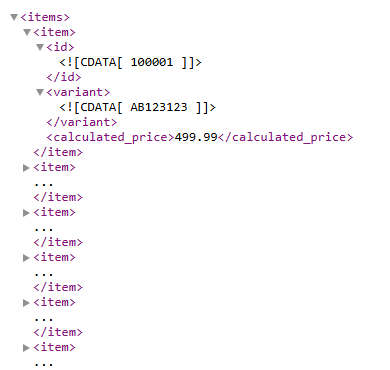
When the synchronization uses XML output, the General Settings page displays a public XML URL. This URL provides the generated calculation results for the synchronization and can be used by the intended store or integration workflow.
The XML contains separate product entries. Depending on the configured export schema, an entry may include the imported product identifier, an optional variant, and the calculated price.
Treat the public XML URL as access information for your product-price feed. Share it only with the systems or people that need to use the generated output.
How to use this page safely
- Open the required synchronization from the Price synchronization list.
- Select Modify general settings.
- Review the current configuration before making changes.
- Change only the fields required for the current task.
- Confirm that the import URL and selected import format still match.
- Check that the selected data source is appropriate for the product queries already imported.
- Compare the import, monitoring, and export frequencies so that each schedule matches its intended purpose.
- Review the export destination before saving, especially when prices are sent to a connected store.
- Save the form and review the next synchronization report or generated output.
After saving, future synchronization activity uses the updated configuration. The exact effect depends on the field changed. For example, a new import URL affects future imports, while a changed monitoring frequency affects future public-data checks.
Changing the data source
Different price comparison sources may return different results for the same query. Before changing the source, test the existing product queries on the newly selected platform and confirm that they return the intended products.
B2BLIX submits the query supplied for each product. It does not guarantee that the returned cards represent the same model, variant, condition, or offer type.
Changing the import URL
Update the Import URL when the location of your product feed has changed or when you have moved the feed to another supported source.
Before saving, confirm that the new URL is accessible and that its content uses the selected import format. An incorrect URL or mismatched format can prevent updated product data from being imported correctly.
Common mistakes
- Confusing monitoring frequency with import frequency. Monitoring checks the external comparison source, while import reads your own product data.
- Changing the data source without testing queries. A query that works on one platform may return different or unsuitable results on another.
- Changing the import URL but not the import format. The selected format must match the data available at the new source.
- Increasing monitoring frequency without reviewing usage. More frequent checks can increase data collection costs.
- Setting active to no and expecting new observations. Deactivated data collection does not continue gathering new public result data for that synchronization.
- Changing several settings at once. Making changes in smaller steps makes it easier to understand their effect in reports and generated output.
- Sharing the public XML URL unnecessarily. The feed may contain product identifiers and calculated prices.
- Using the deletion control instead of temporary deactivation. Set the synchronization to inactive when you only need to pause data collection.
Example: temporarily deactivate data collection
A seller needs to pause data collection while replacing the product feed and reviewing the synchronization configuration.
- Open the required synchronization in the Price synchronization section.
- Click Modify general settings.
- Set Active to No.
- Save the form.
Data collection for that synchronization is then deactivated. When the configuration is ready again, return to the same page, set Active to Yes, and save the form.