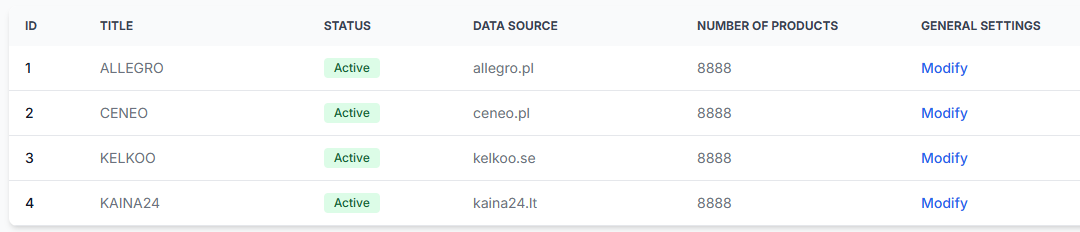
Product checker: review product data and price calculations
Product Checker shows how B2BLIX processed one product, from the imported source data and public comparison results to the calculated and exported price.
What the product checker is used for
Product Checker is the main product-level review interface in B2BLIX. It brings together the important information stored for one imported product and explains how the BuyBox-style pricing calculation was completed.
Open this page when you need to answer questions such as:
- Was this product received during import?
- Which search query is being used?
- Did B2BLIX find public product offers?
- Which suppliers appeared in the first and second positions?
- Which pricing strategy was selected?
- Why did the calculated price increase, decrease, remain unchanged, or stop at a minimum or maximum limit?
- Which value was prepared for export?
The page separates the seller's imported catalog data, public result cards from the selected comparison source, the pricing calculation, and the generated output. The term BuyBox in this interface refers to the internal B2BLIX comparison and pricing model. It does not mean that the price comparison platform operates an official marketplace BuyBox.
Important: Product Checker is read-only. It does not edit the product, change BuyBox settings, or publish a new price. However, it may show a price that has already been prepared for an export or connected store workflow.
What you can do on this page
Product Checker allows you to:
- Search for a product by its imported identifier.
- Select the synchronization that contains the product.
- Review the original imported values.
- Review the first-place and second-place public offers found by the selected source.
- See a representative section of the generated export data.
- Follow the main calculation steps used to produce the final price.
- Check whether the final price was limited by the imported minimum or maximum value.
There is no save button because the information on this page cannot be changed. Changes to the import source, product values, monitoring configuration, BuyBox strategies, or export configuration must be made in the appropriate synchronization settings or source product feed.
Searching for a product
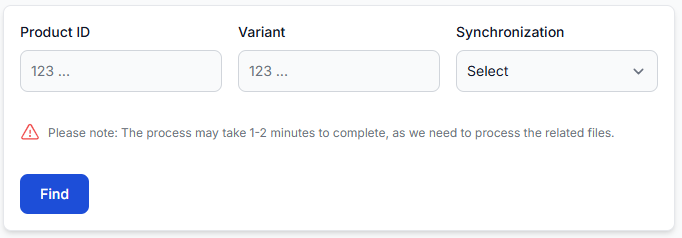
| Field or control | Meaning | How to use it |
|---|---|---|
| Product ID | The product identifier received from the seller's imported product feed. | Enter the exact value used in the import. This field is required. |
| Variant | An optional additional identifier for a size, color, model, or other product variation. | Enter it when the imported product uses a variant. Leave it empty when the product has no variant. |
| Synchronization | The Price Synchronization instance where the product was imported and processed. | Select the synchronization connected to the relevant comparison source and product feed. |
| Find | Starts the product lookup and prepares the detailed report. | Click after confirming the identifier and synchronization. |
The lookup may take approximately one to two minutes because B2BLIX may need to process the related product files before displaying the report.
Understanding the detailed product report
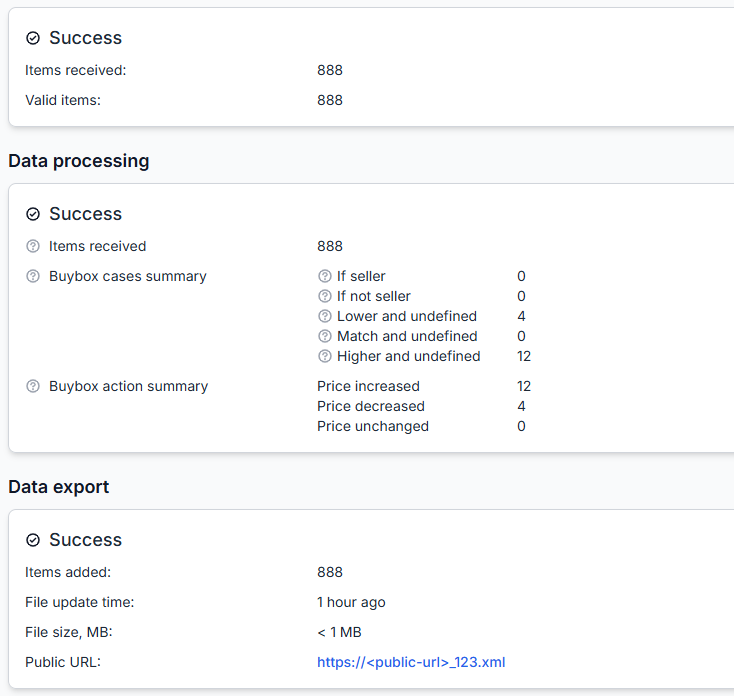
After the product is found, the first part of the report is divided into three sections: Imported source data, Public data overview, and Exported data summary.
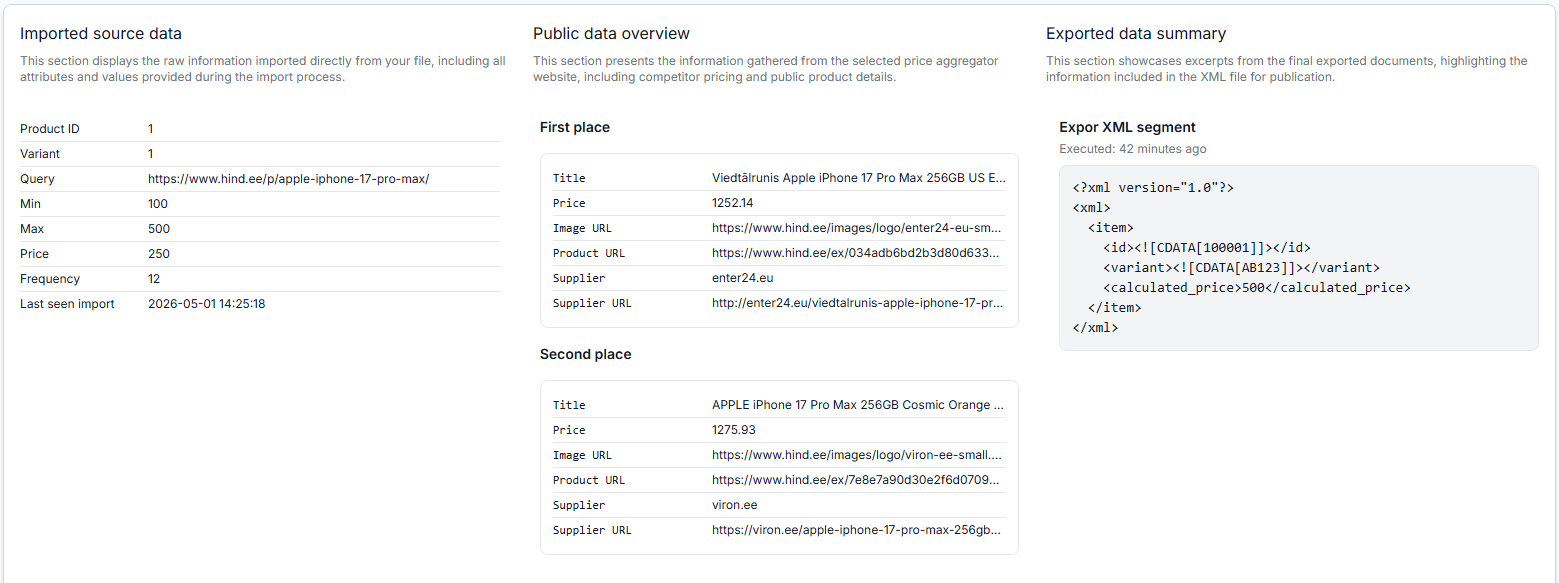
Imported source data
This section displays the raw product information received from the seller's imported file. It helps confirm whether B2BLIX received the expected product record and pricing limits.
| Field | What it shows |
|---|---|
| Product ID | The imported product identifier. |
| Variant | The optional imported variation identifier. |
| Query | The search text or direct product-page URL submitted to the selected price comparison source. |
| Min | The lowest price the calculation is allowed to suggest. |
| Max | The highest price the calculation is allowed to suggest. |
| Price | The seller's imported regular or base catalog price before the B2BLIX calculation. |
| Frequency | The product-level monitoring frequency received during import, when one is provided. |
| Last seen import | The most recent time this product was received during import processing. |
The import source is configured in the synchronization's general settings. The displayed query and pricing values come from the seller's product feed; Product Checker does not edit or correct them.
Public data overview
This section shows public information collected from the selected price comparison source for the product's configured query.
The report may show a First place and Second place result with the following information:
- Title: The public product title displayed by the source.
- Price: The public numeric price displayed for that result.
- Image URL: The public image address supplied by the source.
- Product URL: The public link to the displayed product or result.
- Supplier: The seller or store name shown in the result.
- Supplier URL: The public link associated with that supplier.
Review the result carefully: B2BLIX processes the public result cards returned for the seller-defined query. It does not independently guarantee that every result is the same model, variant, condition, or offer type as the intended product.
The first displayed result is the leading collected offer used in the report. Depending on the configured seller filters, skipped positions, and target position, the comparison target used by the pricing calculation may be different from the first visible result.
Exported data summary
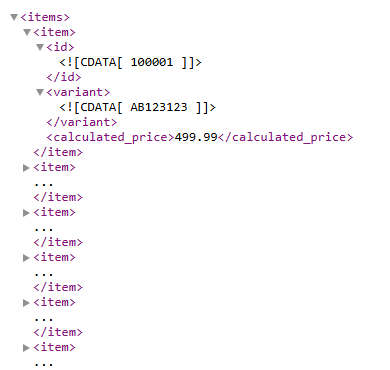
This section shows a representative part of the output generated for the product. For an XML export, it may include fields such as the product identifier, variant, and calculated price.
The summary may also show when the export was last executed. Use this timestamp to check whether you are reviewing a recent output or an older generated result.
The complete public XML address, when XML export is enabled, is available in the synchronization's general settings. That output may be used by a connected store, another synchronization, or an integration such as WooCommerce or PrestaShop, depending on the account configuration.
Understanding the data processing overview
The Data processing overview explains the main logical steps that produced the final price. This is normally the most useful section when a price appears unexpected.
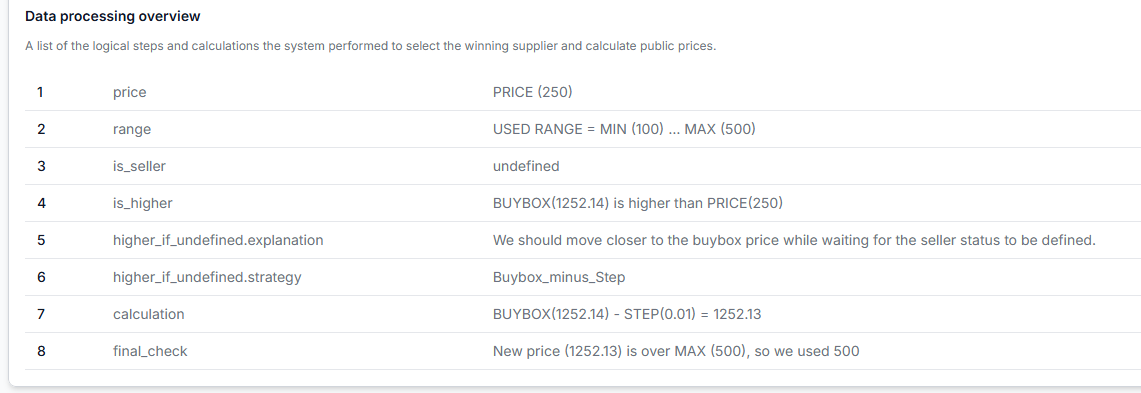
| Step | What it means |
|---|---|
| price | The regular or base price received from the imported product data. |
| range | The imported minimum and maximum boundaries that the final calculated price must stay within. |
| is_seller | Whether the seller's own offer was identified with sufficiently recent data. The status may be seller, not seller, or undefined. |
| Price comparison | Shows whether the imported base price is higher than, lower than, or equal to the selected comparison target. |
| Explanation | A short description of why the relevant calculation branch was used. |
| Strategy | The configured pricing action selected for the current seller and price situation. |
| Calculation | The provisional result before the final minimum and maximum check. |
| final_check | The final safety check that keeps the output inside the permitted price range. |
Example shown in the processing overview
In the displayed example, the imported base price is 250.00, and the permitted range is from 100.00 to 500.00.
The seller state is undefined, meaning that a sufficiently recent confirmation of the seller's position is not available. The selected comparison price is 1,252.14, which is higher than the imported base price.
The configured strategy moves the price toward the selected comparison target by using the target price minus a step of 0.01. This produces a provisional result of 1,252.13.
The provisional result is above the imported maximum of 500.00. The final range check therefore limits the generated price to 500.00.
Always read the final check: The provisional calculation is not necessarily the exported price. The minimum or maximum boundary may replace it during the final safety check.
How to use product checker safely
- Confirm the synchronization. Make sure you selected the synchronization connected to the correct product feed and price comparison source.
- Confirm the identifier. Use the exact product ID and variant from the imported data.
- Check the last import time. Confirm that the product was received recently enough for the result you are investigating.
- Review the query. Make sure the query or direct URL is intended for the correct product.
- Review the public offers. Compare the displayed titles, prices, variants, suppliers, and links with the intended product.
- Read every calculation step. Pay particular attention to the seller state, selected strategy, provisional calculation, and final range check.
- Check the export summary. Confirm that the final exported value matches the result shown by the final check.
- Change the source configuration when necessary. If the query, base price, limits, or frequency are wrong, correct them in the seller's product feed or synchronization settings rather than on this page.
Common mistakes
- Searching in the wrong synchronization. The same product identifier may be processed independently in different synchronizations.
- Entering a variant that does not match the import. A product with a variant must be searched using the same ID and variant combination received from the source data.
- Searching for a product that is not in the imported feed. Product Checker can only display products that were received and stored for the selected synchronization.
- Assuming the first public result is automatically the exact product. Check the title, model, variation, supplier, and product link.
- Reading the provisional calculation as the final result. The minimum or maximum limit may change the final exported price.
- Ignoring timestamps. An older import, public observation, or export may not represent the current market situation.
- Expecting product checker to edit the product. The page explains existing data and calculations but does not provide configuration controls.
- Skipping the data processing overview. This section normally contains the same calculation information that support staff use when reviewing a product-level pricing question.
Example use case
A seller notices that a product with a base price of 250.00 is being exported at 500.00 and wants to understand why.
The seller opens Product Checker, enters the product ID, adds the variant used in the feed, and selects the correct synchronization. The imported data confirms a minimum of 100.00 and a maximum of 500.00.
The public data overview shows a selected comparison offer around 1,252.14. The processing overview explains that the configured strategy produced a provisional value near that offer, but the result was above the permitted maximum.
The final check therefore used 500.00. The seller can now see that the output was not caused by a missing calculation. It was the closest allowed value within the imported price range.