All products interface
This guide explains the filters, product table, price fields, status labels, timestamps, and actions available on the B2BLIX Price Aggregators All Products page.
What the all products page is used for
The All Products page provides a read-only overview of the products stored in a selected price synchronization.
Each synchronization belongs to one selected price comparison data source. The page combines information imported from your product source with the latest public information collected from that source.
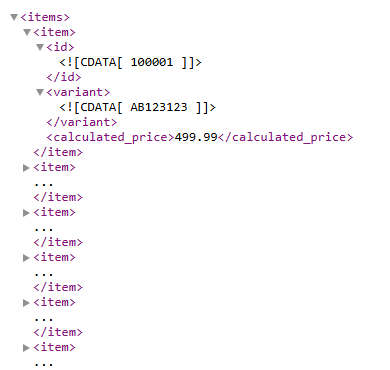
Imported product data may come from a supported XML feed or Google Spreadsheet. Collected web data may include public product titles, images, prices, suppliers, and product links returned for the search query supplied in your import.
Open this page when you need to:
- Confirm that products were imported into a synchronization.
- Find a product by its exact EAN, SKU, or other imported identifier.
- See which products have collected web data.
- Review the latest known BuyBox status, supplier, and price summary.
- Find products that followed a particular calculation case.
- Open a product in Product Checker for a detailed explanation.
You must select a synchronization before product results can be displayed. A red notice asking you to select one is an instruction, not necessarily a system error.
What you can do on this page
- Select a synchronization and view the products imported into it.
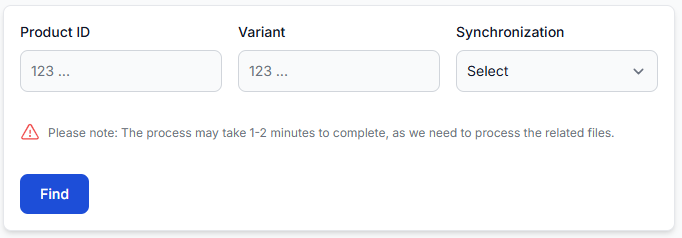
- Search by keyword using an exact product identifier.
- Filter by BuyBox case to find products with a particular status or calculation result.
- Filter by supplier using the supplier recorded from the collected result.
- Show products with web data to focus on products successfully found through the selected data source.
- Review imported and collected prices together with the latest calculated suggestion.
- Check data age using the import and web-data timestamps.
- Open Product Checker from the actions menu.
This page is for viewing and filtering information. It does not contain controls for editing products, changing calculation settings, or publishing prices.
Search filters and controls
| Filter or control | What it means | How to use it |
|---|---|---|
| Keyword | Searches for a product by an exact EAN, SKU, or other stored identifier. | Enter the complete value. A partial identifier may not return the expected product. |
| Sync | Selects the price synchronization whose products you want to view. | This selection is required. Each synchronization has its own imported products, data source, monitoring results, and calculation settings. |
| BuyBox case | Filters products by a status, comparison, formula, range check, validation result, or exclusion recorded during the latest synchronization calculation. | Use this to locate products that followed the same calculation path or reached the same final condition. |
| Supplier | Filters by the supplier currently stored for the collected comparison result. | Enter the supplier name when reviewing products associated with a particular seller. Check the timestamp because the stored supplier may not represent the current public result. |
| Number of products | Filters results to records where the total number of products is greater than the entered value. | Enter a number when you need to limit results according to this product-count condition. |
| Has web data | Limits the results to products for which public result data was successfully collected from the selected source. | Enable it when you only want to review products with collected titles, prices, suppliers, or public product links. |
| Filter | Applies the selected search criteria. | Select the synchronization first, add any optional filters, and then apply the search. |
| Reset filter | Clears the current filters and returns the page to its initial search state. | Use it when no products are returned or when you want to start a new search. |
Understanding the product table
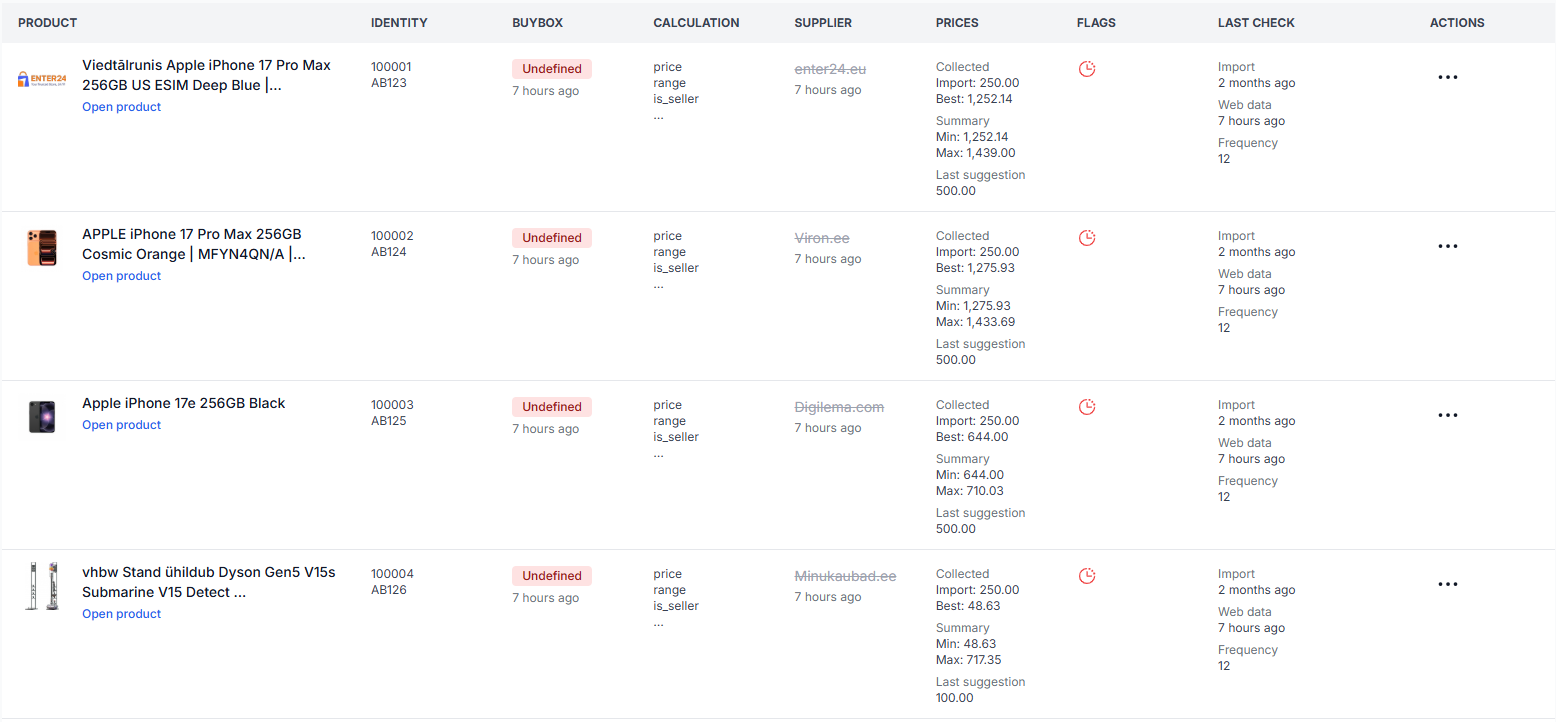
Each row represents one imported product record. A product is identified by its imported ID together with an optional Variant value.
| Column | What it shows | How to interpret it |
|---|---|---|
| Product | The collected product image, title, and an Open product link when a public source URL is available. | Use the link to review the public result on the selected price comparison platform. Check that the returned model and variant match your intended product. |
| Identity | The product ID imported from your source and the optional product variant. | Use these values to match the row with the corresponding product in your catalog or import file. |
| BuyBox | The latest B2BLIX BuyBox status and the age of the information used to determine it. | The status is based on the latest available collected result. It is not a permanent or guaranteed position. |
| Calculation | A compact list of statuses or steps from the most recent BuyBox calculation. | These labels provide a summary only. Open Product Checker to see the imported values, selected strategy, calculation sequence, and final range check. |
| Supplier | The supplier associated with the selected comparison result and the age of that observation. | This is the latest stored supplier, not a guarantee that the same seller is still in that position. |
| Prices | The imported price, selected comparison price, collected price summary, and latest calculated suggestion. | Compare each value carefully because they come from different stages of the workflow. |
| Flags | Icons indicating additional conditions recorded for the product. | Move the pointer over a flag in the interface to read its tooltip and see the exact meaning. |
| Last check | Import and web-data timestamps together with the product monitoring frequency. | Use these values to determine how old the stored information is and how often the product is scheduled for checking. |
| Actions | A three-dot context menu for product-level actions. | Use it to open the selected record in Product Checker. |
Understanding the price values
Imported price
Import is the product price received from your XML feed, Google Spreadsheet, or other configured import source. It represents your regular or base catalog price before the latest B2BLIX calculation.
Best price
Best is the selected comparison price derived from the public result cards stored for the product. Depending on your synchronization settings, the selected comparison target may not always be the cheapest result.
Seller filters, skipped offers, and the configured target position can affect which public result is used as the BuyBox comparison target.
Summary minimum and maximum
Min is the price of the first result in the stored comparison page, while Max is the price of the last result on that page.
These summary values describe collected search results. They are different from the product's permitted minimum and maximum calculation limits supplied in your import data.
Last suggestion
Last suggestion is the most recent price calculated by the B2BLIX pricing algorithm.
The calculation may use the imported price, selected comparison target, seller status, configured strategy, price step, and permitted minimum and maximum limits.
The Last suggestion value is a calculation result. It does not by itself confirm that the price has been exported, sent to an integration, accepted by your store, or made live.
Understanding BuyBox statuses
Inside B2BLIX Price Aggregators, the term BuyBox refers to the B2BLIX comparison and pricing model applied to selected search-result positions. It does not mean that the price comparison platform operates an official marketplace BuyBox or has officially declared a winner.
Won
Won means that the seller identity configured in the synchronization was detected in the selected comparison position using sufficiently recent collected information.
Lost
Lost means that another supplier was detected in the selected comparison position using sufficiently recent collected information.
Undefined
Undefined means that B2BLIX does not have sufficiently recent or suitable information to confirm whether your seller identity is in the selected position.
Undefined does not automatically mean that the product has lost its position. The configured undefined-state strategy may still calculate a price by comparing your imported price with the selected comparison target.
Always read the time shown below the BuyBox status. Public prices and supplier positions can change after the information has been collected.
Understanding the BuyBox case filter
The BuyBox case filter uses labels recorded during the latest automatic synchronization. One product can have several calculation labels, but the table may display only a compact summary.
The available cases can include:
- Seller status, such as yes, no, or undefined.
- Price comparison, showing whether the selected comparison target was lower than, equal to, or higher than the imported price.
- Final range checks, showing whether a provisional calculation was below the permitted minimum, above the permitted maximum, or inside the allowed range.
- Calculation formulas, identifying the configured strategy used for the product.
- Range adjustments, showing that an effective pricing boundary was adjusted by another configured limit.
- Validation cases, indicating that the available data could not be used for the normal calculation path.
- Not-found or exclusion cases, indicating that the product was not found or matched an exclusion rule.
Use this filter to find a group of products with the same condition. Use Product Checker to understand why an individual product received that label.
Understanding timestamps and monitoring frequency
| Value | What it means |
|---|---|
| Import | The time when the product was first recorded in the B2BLIX database. |
| Web data | The age of the latest public-data observation stored for the product. |
| Frequency | The configured number of monitoring checks per day. For example, a frequency of 12 means that the product is scheduled for approximately 12 checks per day. |
Monitoring frequency is separate from the frequency used to import your product feed or produce an export. A recent import does not necessarily mean that the public comparison information was collected at the same time.
How to use this page safely
- Select the correct synchronization.
- Start with one simple filter, such as an exact product identifier or Has web data.
- Apply the filter and confirm that the returned products belong to the intended synchronization.
- Check the product title and public link to confirm that the collected result represents the intended model and variant.
- Compare the Import and Web data timestamps.
- Read the age shown under BuyBox and Supplier.
- Do not treat Last suggestion as a confirmed live price.
- Open unusual or commercially important products in Product Checker before changing calculation or export settings elsewhere.
The all products page does not change live prices. However, the calculation results shown here may later be included in an export or store-integration workflow. Review important products and their permitted price ranges before enabling wider price publication.
Common mistakes
- Not selecting a synchronization. Product results remain unavailable until a synchronization is selected.
- Reading the synchronization notice as an application error. Follow the notice and choose a synchronization from the filter.
- Searching with only part of an identifier. The keyword filter is intended for an exact EAN, SKU, or stored product identifier.
- Assuming Has web data confirms an exact product match. It confirms that result cards were collected, but you should still check the title, model, variant, and public product page.
- Treating Undefined as Lost. Undefined means that the seller position could not be confirmed from suitable recent information.
- Ignoring timestamps. Imported product data and public comparison data can have different ages.
- Confusing collected price summaries with calculation limits. The displayed market summary is not the same as the minimum and maximum price protection supplied in your import.
- Assuming Last suggestion is already live. It may still need to pass through the configured export or integration workflow.
- Trying to understand the full calculation from the table. The table is a summary; use Product Checker for product-level details.
Example use case
A seller wants to review products that were imported successfully and check which of them have collected comparison data.
- Open the All Products page.
- Select the relevant synchronization.
- Enable Has web data and apply the filter.
- Review the collected product title, supplier, best price, and web-data timestamp.
- Check the BuyBox status and Last suggestion.
- Open selected products in Product Checker when more detail is required.
This review helps the seller identify products with usable collected data and inspect the latest known pricing situation. It does not confirm that every returned public result is the exact intended product.