How calculated prices are delivered to a store or another sales channel
B2BLIX can deliver calculated prices as an XML output or send them through a supported store integration. A connected store such as WooCommerce can then update product prices automatically. Learn how calculated prices leave B2BLIX, where to select the export method, and what to verify before enabling automatic price updates in your store.
Where can B2BLIX deliver calculated prices?
After B2BLIX calculates prices, the results are prepared according to the export option selected for the relevant price synchronization. Depending on the available configuration, the calculated prices can be:
- Published as a structured XML output.
- Sent through a supported WooCommerce integration.
- Sent through a supported PrestaShop integration.
- Adapted to another supported destination format when such an option is available for the account.
The available export methods may expand over time. Check the synchronization settings in your account for the current options.
Short answer
Yes, B2BLIX can automatically update prices in a connected online store. B2BLIX calculates the new prices and sends them through the configured integration. The connected store receives the data and applies it to the relevant products.
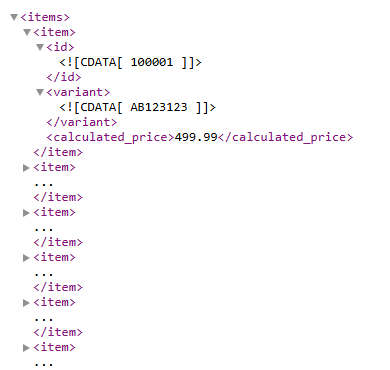
When XML is selected instead, B2BLIX generates a structured output containing the calculated data. Your store, CMS, or another receiving system must be configured to read that output and use it in its own price-update process.
Important: An active export or store integration can affect live product prices. Before enabling automatic updates for a large catalog, verify the export method, product identifiers, minimum and maximum prices, and several calculated results.
How price delivery works
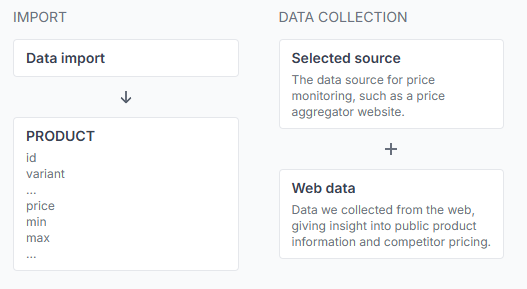
Each price synchronization has its own import, calculation, monitoring, and export configuration. B2BLIX first imports the store's product data, uses the collected market information to calculate a permitted price, and then prepares or sends the result using the selected export method.
Monitoring and export are separate steps. Monitoring collects public price information according to the configured product frequency. Export processing prepares or sends calculated results according to its own schedule.
This means that a new market observation does not necessarily appear in the store immediately. The timing also depends on when the synchronization calculation and export are scheduled to run.
B2BLIX sends prices for the seller's own store or connected catalog workflow. It does not directly change prices on Kaina24.lt or another price comparison platform.
What to check in your account
- Open the correct synchronization. Each synchronization has its own source, products, calculation settings, and export destination.
- Check that the synchronization is active. An inactive synchronization will not continue its normal scheduled workflow.
- Verify the selected export option. Confirm that it is set to XML, WooCommerce, PrestaShop, or the other intended destination available in your account.
- Check the export destination or integration details. For a store integration, make sure the connection is configured for the correct store.
- Review the export frequency. The export schedule determines how often the calculated output is regenerated or sent.
- Confirm product identification. The receiving store must be able to connect each exported record with the correct product using the imported product ID and, when applicable, its variant.
- Verify the permitted price range. Products intended for automatic repricing should have the required minimum and maximum prices. B2BLIX does not bypass these limits.
To check this in your account, open Price Synchronization.
To understand the import and export fields on that page, read Price Synchronization: General settings.
Common reasons why prices are not updated as expected
The wrong export method is selected
A synchronization configured for XML will generate an XML output. It will not behave like a direct WooCommerce or PrestaShop connection unless another system has been configured to import that XML.
The integration or synchronization is not active
Automatic delivery depends on an active synchronization and a working destination configuration. Check both before changing calculation settings.
The export has not run yet
Monitoring, calculation, and export can run on different schedules. Recent competitor information may already be collected while the next export is still pending.
The product cannot be matched in the destination
The imported product ID and optional variant should consistently identify the same product in the receiving store or workflow. Incorrect or changed identifiers can prevent the intended product from being updated.
The product does not have the required price limits
Minimum and maximum prices protect products from unsafe automatic adjustments. When the required limits are missing, the product should not be automatically repriced and may be returned with its base price.
The calculated result is different from the expected market price
The exported value is produced by the configured B2BLIX strategy. It is not automatically the cheapest price found. Seller filters, skipped offers, target position, strategy, freshness settings, and the product's minimum and maximum limits can all affect the final result.
How to verify a specific product
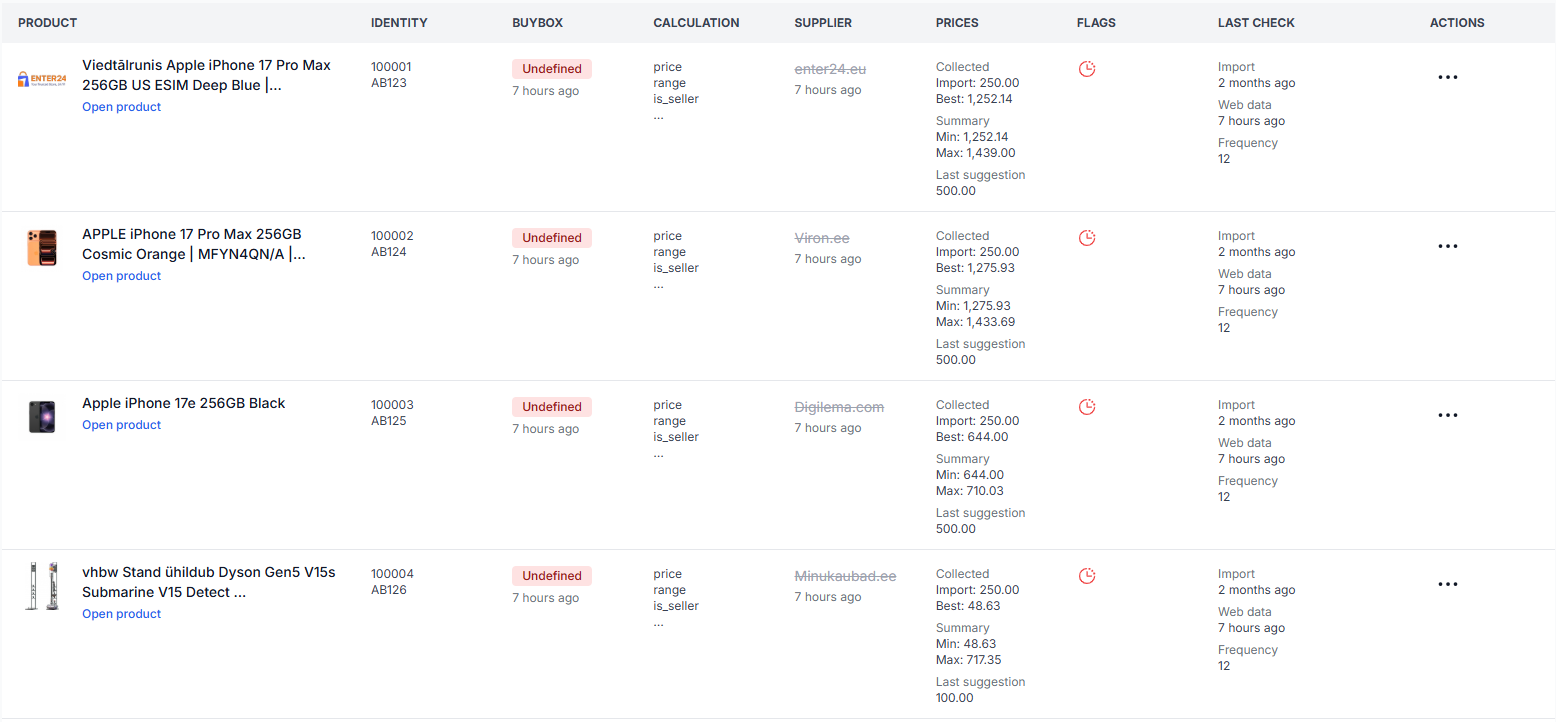
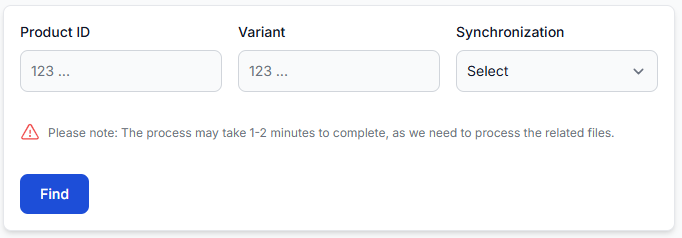
When one product has an unexpected store price, check the product before changing the full synchronization. The Product Checker shows the imported data, collected public offers, selected strategy, provisional calculation, final range check, and an example of the exported result.
Open Product Checker when you are logged in.
For an explanation of the displayed information, read Product Checker: Review product data and price calculations.
Example
A seller creates a synchronization for Kaina24.lt, imports products with their base, minimum, and maximum prices, and selects WooCommerce as the export destination.
B2BLIX collects the configured comparison results and calculates a new price of €49.99 for one product. During the next export run, B2BLIX sends that calculated price through the integration. The connected store matches the product using its identifier and updates its price to €49.99.
If the same synchronization used XML instead, the €49.99 result would be included in the generated XML output. A separate store or CMS process would need to read that output and apply the update.
What to do next
- Open the relevant synchronization and confirm the selected export method and destination.
- Check the export schedule and the most recent synchronization report.
- Review several products in Product Checker, including their identifiers and minimum and maximum prices.
- Test automatic delivery with a small product group before applying it to the full catalog.
- After the next export, confirm that the calculated prices were applied to the correct products in the destination store.
Start with a limited set of products and review the first exported results before expanding the integration. This helps prevent unsuitable product data, identifiers, or pricing settings from affecting a large live catalog.