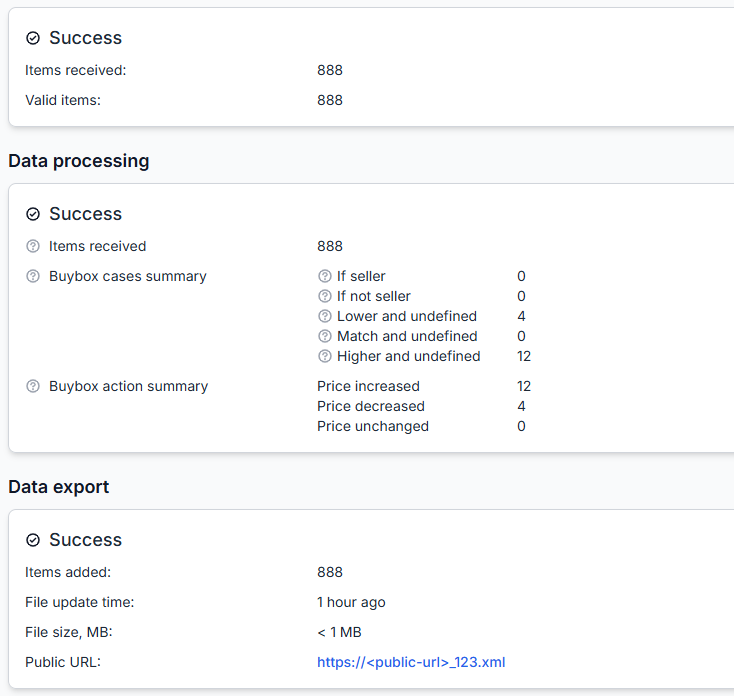
How optimized prices are calculated within seller-defined min/max limits
See how competitor offers from Kaina24.lt and your product-level price limits are combined to calculate a competitive price without going below or above the range you allow.
This guide explains how B2BLIX selects a comparison target, applies your pricing strategy, and checks the calculated result against each product’s minimum and maximum price.
When this article is relevant
This article answers a common question: how does B2BLIX calculate an optimized price for a product monitored on Kaina24.lt?
It is useful when you want to understand why a suggested price was selected, why the price stopped at a specific limit, or why B2BLIX returned the product’s base price instead of adjusting it.
Short answer
B2BLIX processes the public offers returned by your product query, selects a comparison target according to your synchronization settings, and applies the configured pricing strategy. The provisional result is then checked against the product’s imported minimum price and maximum price.
If the provisional price is below the permitted minimum, the final suggested price cannot go below the minimum. If it is above the permitted maximum, it cannot go above the maximum.
B2BLIX does not guarantee a specific position on Kaina24.lt. The final visibility of an offer depends on the comparison platform, the returned search results, your seller settings, and other factors outside B2BLIX.
How the calculation works
The calculation uses several separate pieces of information:
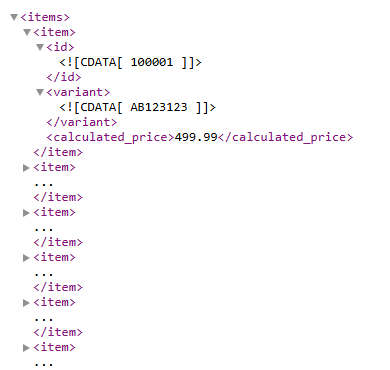
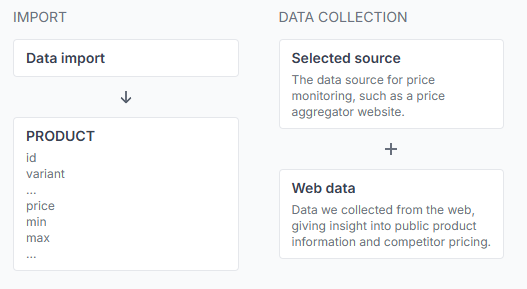
- Your imported product data, including the base price, minimum price, maximum price, and product query.
- Public offers returned by Kaina24.lt for the exact query you supplied.
- Your BuyBox settings, such as seller filters, skipped offers, target position, price step, and selected pricing strategy.
- The product’s allowed price range, which is applied as the final safety check.
The selected comparison target is not always the cheapest returned offer. Your settings may instruct B2BLIX to skip certain sellers, prefer selected sellers, ignore the first offers, or target an area such as the first result, Top 3, Top 10, or the first page.
The selected strategy then determines whether the provisional price should be reduced, maintained, matched to a reference offer, moved slightly below it, or increased. The exact action can also depend on whether your own seller offer was found and whether the collected information is recent enough.
The term BuyBox in B2BLIX refers to the internal comparison and pricing model. It does not mean that Kaina24.lt operates an official marketplace BuyBox or declares one seller as the winner.
For a visual explanation of the calculation stages, read Understanding the BuyBox schema for price aggregators.
How min and max protect your prices
The min value is the lowest price that B2BLIX may suggest for the product. The max value is the highest permitted suggested price.
B2BLIX first calculates a provisional result from the selected competitor target and strategy. It then applies the following final check:
- If the provisional result is inside the permitted range, that result can be used.
- If it is below min, the final suggested price is limited to min.
- If it is above max, the final suggested price is limited to max.
The minimum and maximum values must be supplied for each product through the imported product data. B2BLIX does not calculate these limits from categories, margins, or coefficients.
If the required limits are missing, the product is not automatically adjusted and its base price is returned.
What to check in your account
1. Check the imported base price and limits
Confirm that the product has the correct:
- Base price
- Minimum price
- Maximum price
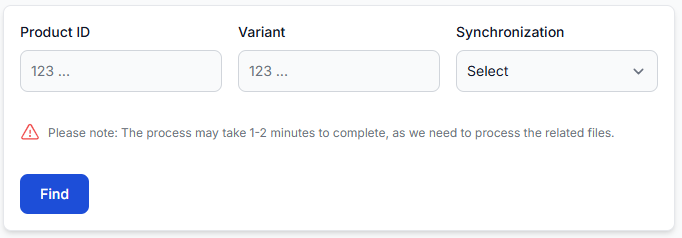
- Product id and optional variant
- Kaina24.lt query
The minimum should not be higher than the maximum. Both values should also use the same intended currency and market context as the synchronization.
2. Check the returned competitor offers
B2BLIX uses the exact query supplied in your imported data. It does not rewrite the query or independently confirm that all returned cards represent the same product, model, or variant.
Test the query directly on Kaina24.lt and verify that the returned results are commercially relevant. Check for different models, sizes, conditions, bundles, or promotional offers that should not be used as your comparison target.
3. Review the target and pricing strategy
Check which sellers and result positions are allowed to influence the price. An unexpected result may be caused by a preferred-seller rule, an excluded seller, skipped leading offers, or a target position other than the first result.
To check this in your account, open Price synchronization settings when you are logged in. To understand the available controls, read Configure BuyBox settings for a price synchronization.
4. Review the product-level calculation
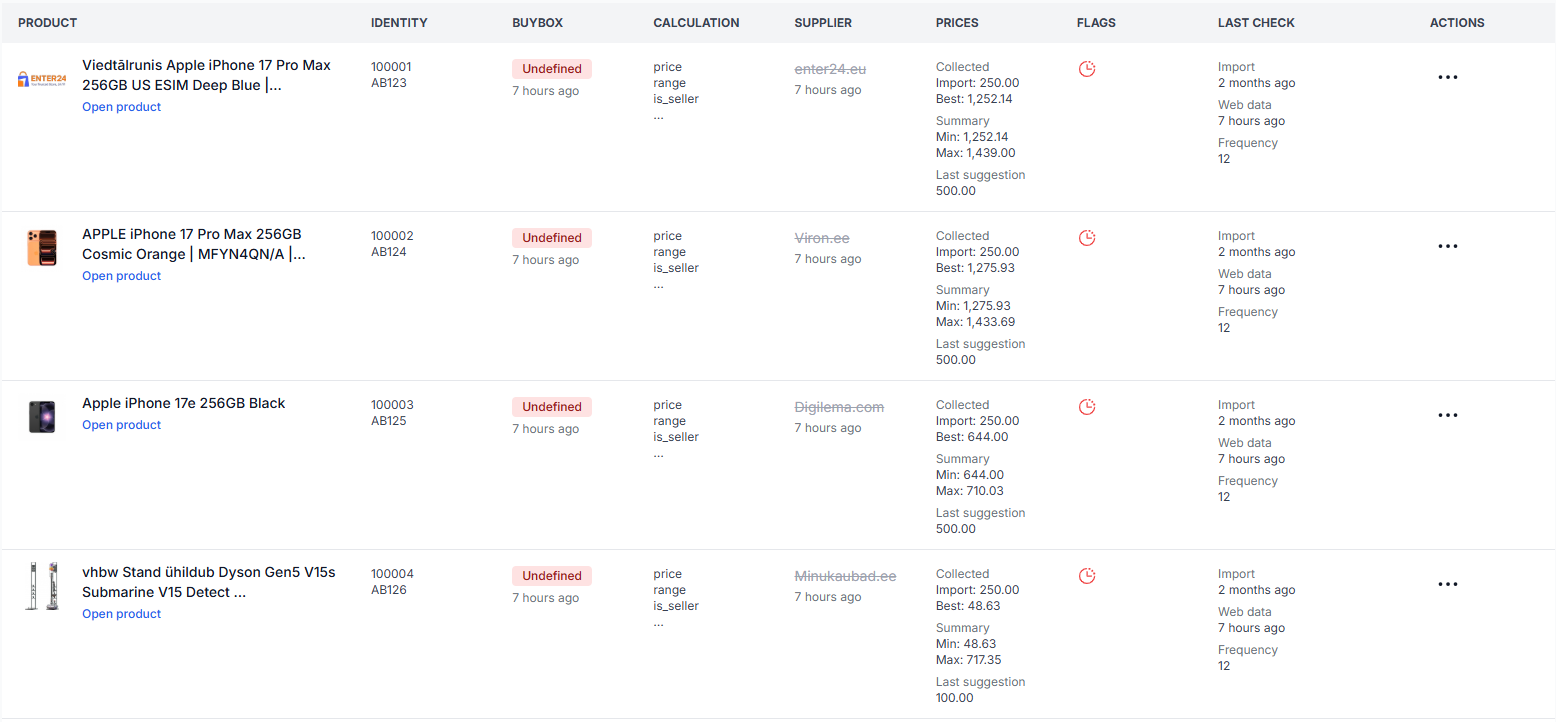
Product Checker shows the imported values, collected public offers, selected strategy, provisional calculation, and final range check for one product.
To check this in your account, open Product Checker. For an explanation of its fields and calculation sections, read Product Checker: review product data and price calculations.
Common causes of an unexpected suggested price
- The calculated price reached min or max. The selected strategy produced a value outside the permitted range, so the final result was limited to the closest allowed boundary.
- The query returned a different product or variant. B2BLIX processes the public cards returned for your query but does not semantically verify that every card is an exact product match.
- The cheapest offer was not the selected target. Seller filters, skipped offers, or the selected target position may cause another offer to be used.
- Your own seller offer was detected. A separate strategy may apply when B2BLIX identifies your seller name in the collected results.
- The collected information was no longer recent enough. The calculation may use an undefined-state strategy instead of treating an older seller position or comparison price as confirmed.
- No usable result cards were returned. In this situation, B2BLIX normally returns the imported base price instead of forcing an unsupported competitive adjustment.
- Min or max was missing. Without the required calculation limits, the product is excluded from automatic price adjustment and the base price is returned.
Example
Suppose a product has these imported values:
- Base price: €50.00
- Minimum price: €45.00
- Maximum price: €48.00
The selected competitor target is €49.99, and the strategy is to move €0.01 below that target. The provisional result is therefore €49.98.
Because €49.98 is above the permitted maximum of €48.00, the final suggested price is limited to €48.00.
This does not mean that B2BLIX ignored the competitor price. It means the seller-defined maximum was applied as the final boundary.
What to do next
- Open Product Checker and confirm the imported base price, min, max, and query.
- Review the first and second public offers returned for the product.
- Check which target position and pricing strategy were applied.
- Confirm whether the provisional calculation was changed by the final min/max range check.
- Correct the imported limits or query only after confirming that the current data is incorrect or unsuitable.
- Test changes with a small product group before applying them to a larger catalog.
Changes to price limits, seller filters, target positions, or pricing strategies can affect future calculated and exported prices. Review the calculation and generated output before enabling wider automatic synchronization.