What data is required for product monitoring and repricing?
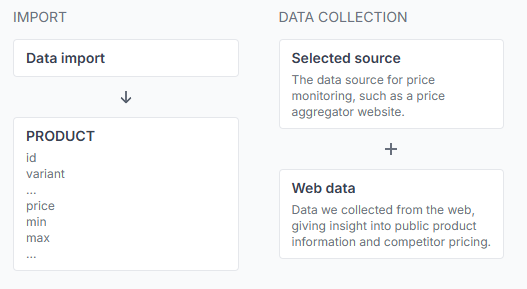
Prepare a stable product identifier, a useful search query, your current price, and minimum and maximum price limits. These fields allow B2BLIX to collect comparison results and calculate a controlled price for your product.
Learn which product attributes are required for price aggregator monitoring, which fields are needed for automatic repricing, and what to verify before publishing calculated prices to your store.
What information do you need to provide?
This article is relevant when you are preparing product data for a B2BLIX price synchronization connected to a supported price comparison source, for example, Kaina24.lt.
B2BLIX needs enough information to:
- identify the product in your imported catalog;
- search for the product on the selected price comparison source;
- compare the collected public offers with your current price;
- calculate a price within limits that you control;
- return or publish the result through your selected export method.
Short answer
For basic product monitoring, provide:
- id — a unique identifier for the product;
- query — the exact search query that B2BLIX should submit to the selected price comparison source.
For automatic repricing, you should also provide:
- price — your product’s regular or base price;
- min — the lowest price that B2BLIX may suggest;
- max — the highest price that B2BLIX may suggest.
Important: A product without the required minimum and maximum price limits is not automatically repriced. The base price should be returned instead of an unprotected calculated price.
How product searching works
B2BLIX does not independently identify a product by analysing its meaning, model, or technical characteristics. It submits the query that you provide and processes the public result cards returned by the selected price comparison source.
An EAN code is normally a good starting point because it can identify a specific commercial product. However, an EAN search may not always return useful results on every price comparison platform.
Depending on how the product is listed on the selected source, your query may be:
- an EAN code;
- a SKU or manufacturer code;
- a specific product title;
- another search phrase that returns the intended comparison results.
For example, when using Kaina24.lt, test the exact EAN, product code, or title directly on Kaina24.lt before adding it to your synchronization.
You are responsible for choosing and testing the query. B2BLIX checks that the query is present, but it does not rewrite an unsuitable query or automatically perform a different search when the results are incorrect.
Product attributes you can provide
| Attribute | Requirement | Purpose |
|---|---|---|
| id | Required | A stable identifier for the product. You can use an ID from your store system or an EAN code. |
| variant | Optional | Distinguishes variations that share the same product ID, such as different sizes, colours, or models. |
| query | Required | The exact text submitted to the selected price comparison source when searching for public product offers. |
| frequency | Optional | Overrides the synchronization’s default monitoring frequency for this product. |
| min | Required for automatic repricing | The lowest price that the calculation may return. |
| max | Required for automatic repricing | The highest price that the calculation may return. |
| price | Needed for price calculations | Your regular or base catalog price before the B2BLIX calculation. |
| delete | Optional | Removes the specified product during import when its value is set to true. |
The available product-level monitoring frequencies are 1, 2, 4, 6, 8, 12, 24, 48, or 96 times per day. For example, a frequency of 12 means approximately one check every two hours.
If a product does not include its own frequency, the default monitoring frequency configured for the synchronization is used.
What to check in your account
To review the accepted import attributes, open Price Synchronization General Settings when you are logged in. To understand the import, monitoring, and export settings on that page, read Price Synchronization: Edit General Settings.
Before enabling automatic repricing, check the following:
- Confirm that every product has a stable id. Do not reuse the same combination of id and variant for different products.
- Test the exact query on the selected price comparison source. Confirm that it returns the intended product, model, and variant.
- Review the returned sellers and offers. Search results may contain another model, variant, promotional listing, or otherwise unsuitable offer.
- Verify the base price. The price should represent the regular price used as the starting point for the calculation.
- Set a safe minimum and maximum. These limits protect the product from calculations outside your permitted range.
- Check the monitoring frequency. Use the synchronization default unless the individual product needs a different schedule.
- Confirm the export requirements. Additional destination fields may be needed when calculated results must be published to a store integration or another system.
How to verify one product
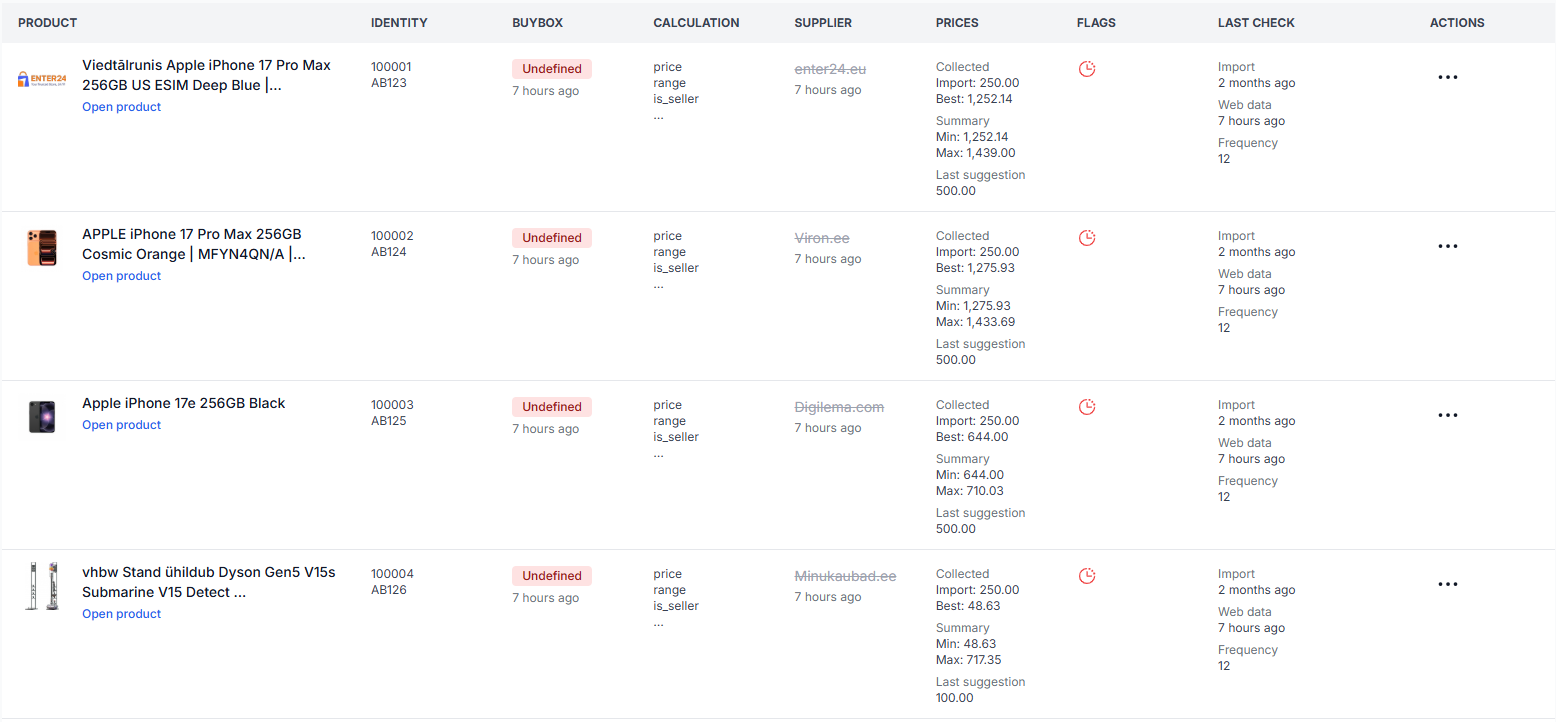
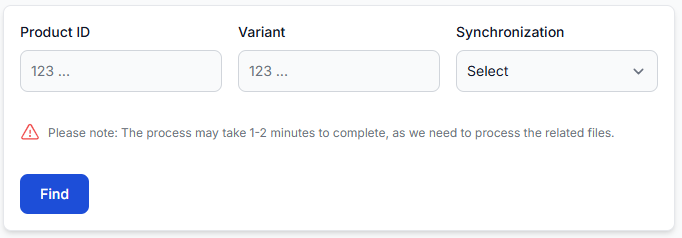
To inspect the imported data and calculated result for an individual product, open Product Checker. For an explanation of its search fields and calculation report, read Product Checker: Review Product Data and Price Calculations.
Product Checker can help you verify:
- the imported id, variant, and query;
- the current price, min, and max values;
- the first and second public offers collected from the selected source;
- the seller and product information returned by the query;
- the selected pricing strategy and provisional calculation;
- the final price after the minimum and maximum range check;
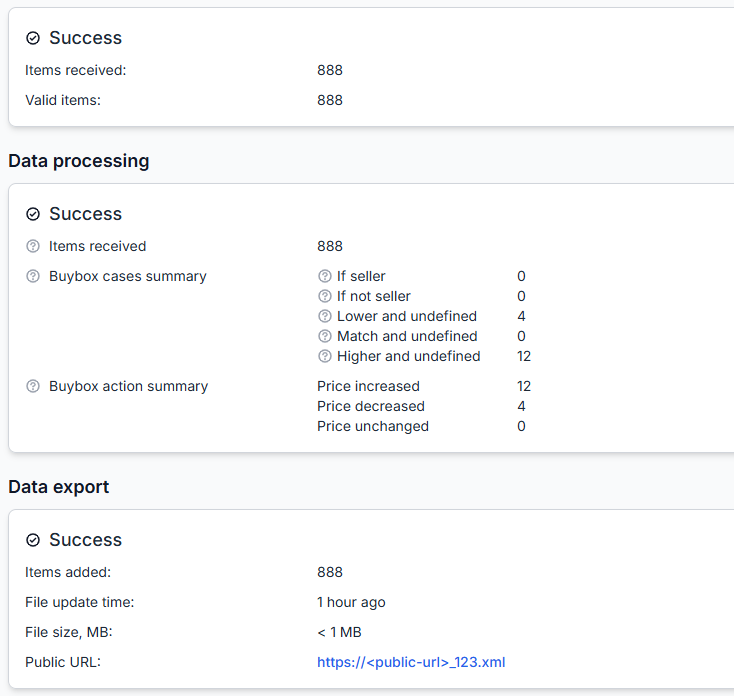
- the data prepared for export.
Common data problems
The query returns the wrong product
The search phrase may be too broad, or the EAN may not produce useful results on the selected source. Test a more specific product code or title and review the exact result cards before using the query for repricing.
Different variants appear in the results
A search may return different sizes, colours, capacities, models, or product conditions. B2BLIX processes the cards returned by the platform and does not independently confirm that they are identical to your product.
The product is monitored but not repriced
Check whether both min and max are present and valid. Without the required safety limits, the product should remain at its base price instead of receiving an automatic competitive adjustment.
The product has no useful comparison results
The query may return no cards, or the available cards may not be suitable for your intended comparison. Review the query directly on the selected price comparison source and inspect the product in Product Checker.
The calculated result cannot be published
The imported product data may be sufficient for monitoring and calculation but insufficient for the selected export destination. Check the export schema and any destination-specific fields shown in the synchronization’s General Settings.
A removed product remains in B2BLIX
You can provide delete=true for the product during import. Products that are no longer present in continuing imports may also be removed automatically after the documented retention period.
Example
A seller creates a price synchronization for a price comparison source, for example, Kaina24.lt, and imports the following product:
- id: 12345
- query: the product’s EAN code
- price: EUR 79.99
- min: EUR 70.00
- max: EUR 85.00
B2BLIX submits the EAN to the selected source and uses the returned public offers as input for the configured pricing strategy. Whatever provisional price the strategy produces, the final result must remain between EUR 70.00 and EUR 85.00.
If the same product is imported without its minimum or maximum price, it should not receive an automatic competitive price adjustment.
Warning: Query, price-limit, monitoring-frequency, and export changes can affect collected data, monitoring usage, calculated prices, and prices sent to your store. Test a small product group in Product Checker and review the generated output before enabling wider or more frequent price publication.
What to do next
- Open the synchronization’s General Settings and review the current import attribute schema.
- Prepare a stable id and a tested query for every product.
- Add the current price and safe min and max limits for every product that should be repriced.
- Add variant, product-level frequency, or destination-specific fields only where needed.
- Start with a small group of products and verify each query and calculation in Product Checker.
- Review the export result before expanding the synchronization to the full catalog.